
Most small businesses want the same handful of AI jobs. They want to draft emails, summarize calls, read invoices, search their own documents, and make the odd image. Plenty of them can't send customer data to a cloud API to do it.
Often the reason is data privacy and sovereignty. A clinic, a law firm, or an accountant may hold records that a contract, a regulator, or a professional duty says must stay under their control. Once that data goes to a cloud API, it sits on someone else's hardware, possibly in another jurisdiction, under terms the provider can change. Running the models on hardware you own keeps the data in your building, and lets you show an auditor exactly where it went.
Your n8n workflows can transcribe calls, read invoices, answer questions from your own documents, and draft replies without sending a byte to a cloud API. This post shows you how to serve every model those workflows need from one NVIDIA DGX Spark, behind one OpenAI-compatible endpoint that n8n's OpenAI nodes already speak.
A DGX Spark has 128GB of unified memory shared by the CPU and GPU. That's enough to keep every one of those jobs loaded at once, if you pick the right models. Most of this post is about that.
The self-hosted AI starter kit gets one person running local models on a laptop. This is the next step: a box in the office that serves a whole team, with a model for each job and the code to run it.
In this post, you'll:
- Choose models that run fast on the DGX Spark's memory bandwidth
- Serve a 35B mixture-of-experts model with vLLM in NVFP4
- Fit a full AI stack into one box's shared memory
- Route every job through one LiteLLM endpoint with per-team keys
- Connect n8n to the stack and build a workflow that never calls a cloud API
- Measure what happens to chat speed when someone generates an image
Pick models for the bandwidth, not the parameter count
The DGX Spark's GB10 Grace Blackwell Superchip reads memory at 273 GB/s. When a model generates text, it reads its active weights from memory for each token, so the fewer bytes it reads, the faster it runs.
A mixture-of-experts (MoE) model only activates a few experts per token. Qwen3.6-35B-A3B has 35B parameters in total but about 3B active. Stored in NVFP4 (NVIDIA's 4-bit floating point format), those active weights are a small fraction of a dense model's.
On my DGX Spark, Qwen3.6-35B-A3B generated 120 tokens per second for one user, and 359 tokens per second in total across eight users. Those numbers include the reasoning tokens the model writes before it answers.
That gives the first design rule: one strong MoE model for everything text-shaped. Summarizing, classifying, extracting, drafting, coding, and reading screenshots all go to the same model. Every extra model is another container to pin, patch, and monitor, so a specialist model only gets a slot where an LLM can't do the job.
The stack
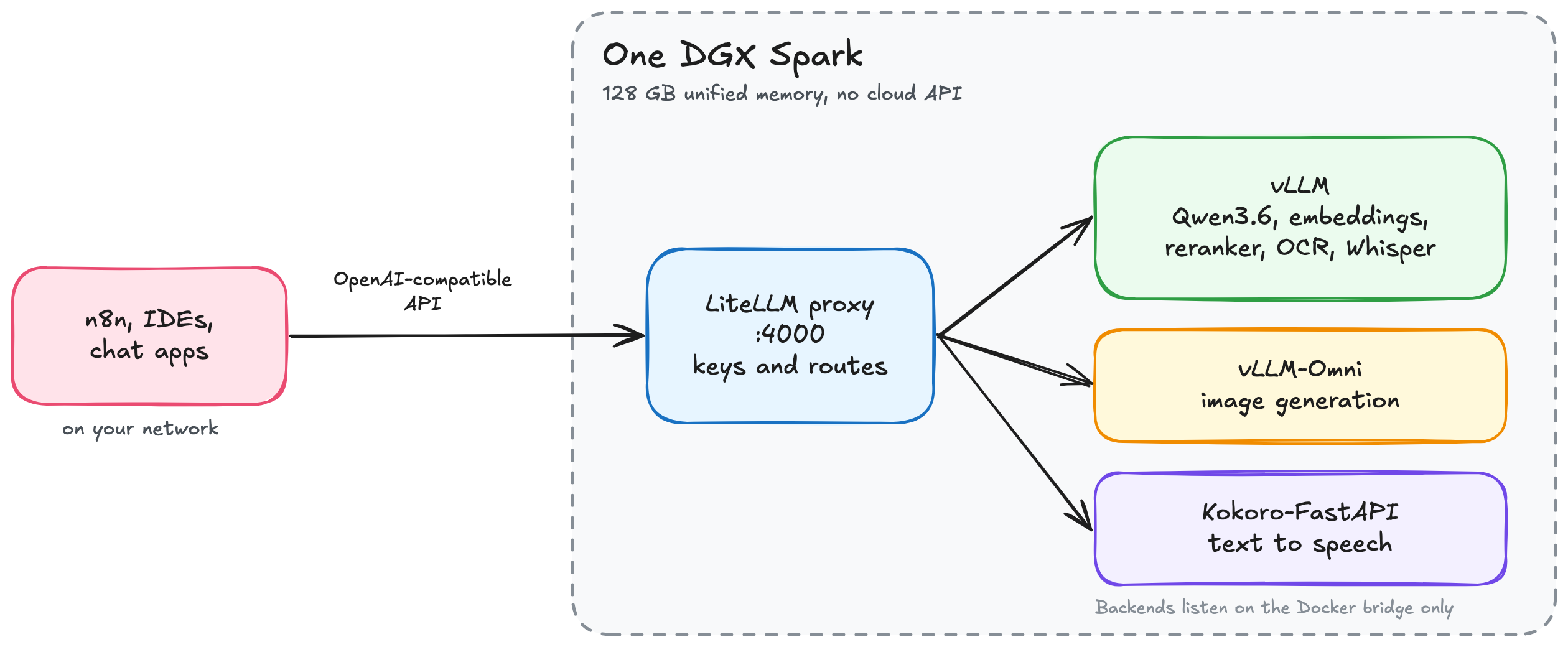
These are the models that stay loaded on one DGX Spark:
| Job | Model | License |
|---|---|---|
| Chat, coding, vision, extraction | nvidia/Qwen3.6-35B-A3B-NVFP4 |
Apache 2.0 |
| Embeddings | Qwen/Qwen3-Embedding-4B |
Apache 2.0 |
| Reranking | Qwen/Qwen3-Reranker-0.6B |
Apache 2.0 |
| Speech to text | openai/whisper-large-v3-turbo |
MIT |
| Document OCR | zai-org/GLM-OCR |
MIT |
| Image generation | Tongyi-MAI/Z-Image-Turbo |
Apache 2.0 |
| Text to speech | hexgrad/Kokoro-82M |
Apache 2.0 |
Every model in the stack allows commercial use. That rule cost more than any technical one, and there's a section on it later.
Step 1: Cache everything for offline use
The stack has to run with the network cable unplugged, so download every model once and record the exact commit you got. This loop caches each model and writes a lock file of repository and commit:
pipx install "huggingface_hub[cli]"
hf auth login

for repo in nvidia/Qwen3.6-35B-A3B-NVFP4 Qwen/Qwen3-Embedding-4B Qwen/Qwen3-Reranker-0.6B \
            openai/whisper-large-v3-turbo zai-org/GLM-OCR Tongyi-MAI/Z-Image-Turbo; do
  hf download "$repo"
  echo "$repo $(cat ~/.cache/huggingface/hub/models--${repo//\//--}/refs/main)" >> models.lock
done
When you start a model, pass --revision with the commit from models.lock. vLLM then serves the weights you tested rather than whatever main points to today, so an upstream change can't swap the weights or the license under you.
Check the vLLM version, not the tag
Pin containers the same way, and check what's inside them. My first attempt used vLLM's cu130-nightly tag. That tag had stopped updating, and the image it pulled was five months old, with vLLM 0.19. It couldn't load Qwen3.6 at all. The errors didn't mention versions. They were a KeyError for a missing weight-scale parameter, which reads like a broken checkpoint.
Before you trust an image, print the vLLM version inside it:
docker run --rm --entrypoint python3 <image> -c "import vllm; print(vllm.__version__)"
The image that worked was the official vllm/vllm-omni:v0.30.0, which ships vLLM 0.30.0 with an arm64 build. vLLM-Omni is a full vLLM with extra serving modes for images and speech, so it also serves plain LLMs. Its default entrypoint isn't vllm serve, so wrap it once:
printf 'FROM vllm/vllm-omni:v0.30.0\nENTRYPOINT ["vllm", "serve"]\n' | docker build -t vllm-spark:omni-0.30.0 -
The Kokoro-FastAPI image needed a community fix to build on arm64. The Dockerfile comes from a post by swann.schilling on the NVIDIA Developer Forums.
Step 2: Serve the backbone
This command starts the main model in vLLM:
docker run -d --name qwen3.6 --gpus all --ipc=host \
  -p 172.17.0.1:8001:8000 \
  -e HF_HUB_OFFLINE=1 -e VLLM_API_KEY=<your-backend-key> \
  -v ~/.cache/huggingface:/root/.cache/huggingface \
  vllm-spark:omni-0.30.0 \
  nvidia/Qwen3.6-35B-A3B-NVFP4 --revision <commit-from-models.lock> \
  --served-model-name qwen3.6-35b \
  --gpu-memory-utilization 0.32 --max-model-len 65536 \
  --max-num-seqs 8 --max-num-batched-tokens 8192 \
  --trust-remote-code --kv-cache-dtype fp8 --moe-backend marlin \
  --enable-chunked-prefill --async-scheduling --enable-prefix-caching \
  --speculative-config '{"method":"mtp","num_speculative_tokens":3,"moe_backend":"triton"}' \
  --reasoning-parser qwen3 --enable-auto-tool-choice --tool-call-parser qwen3_xml \
  --host 0.0.0.0 --port 8000
On my DGX Spark, this model was ready to serve 311 seconds after docker run.
The port is published on 172.17.0.1, Docker's bridge address, so only containers on this machine can reach it. VLLM_API_KEY makes vLLM reject any request without the key.
The flags that matter most on a DGX Spark:
--gpu-memory-utilization 0.32caps this model at about a third of memory. The other models need the rest.--kv-cache-dtype fp8halves the memory the KV cache needs, so the same budget holds more context.--moe-backend marlinpicks the kernel for the quantized expert layers. The draft model's experts aren't quantized, so--speculative-configsets its ownmoe_backend.--speculative-configturns on multi-token prediction (MTP). The model drafts three tokens ahead and checks them in one pass.--reasoning-parserand--tool-call-parsermust match the model family. When tool calling fails, check these flags before you blame the model.
Check the startup log for the kernels vLLM chose. These lines are from my run:
Using MarlinNvFp4LinearKernel for NVFP4 GEMM
Using 'MARLIN' NvFp4 MoE backend out of potential backends: ['FLASHINFER_TRTLLM', 'FLASHINFER_CUTEDSL', ...]
Your GPU does not have native support for FP4 computation but FP4 quantization is being used.
Weight-only FP4 compression will be used leveraging the Marlin kernel.
That last warning matters for how you read "NVFP4" on a DGX Spark. With this vLLM build, the weights are stored in 4 bits, but the math runs in 16 bits. You still get most of the benefit, because generating tokens is limited by reading weights from memory, and 4-bit weights are a quarter of the size. Faster FP4 kernels for GB10 may raise these numbers in later builds.
Step 3: Fit the rest into shared memory
On a DGX Spark, the GPU and the operating system share one 128GB pool. Linux reported 121GB of it as total memory on my box. That changes two things you might take for granted on a discrete GPU.
First, --gpu-memory-utilization is a fraction of the whole pool, taken at startup. It's not a fraction of what's free. An instance without a cap tries to take almost everything, and the next model fails to start.
Second, vLLM sizes its cache from the memory that's free when it starts. Start two models at once and they fight over the same memory. Start one at a time, and wait for each to answer its health check before starting the next:
until curl -sf http://172.17.0.1:8001/health; do sleep 5; done
If a model fails with CUDA error: out of memory while free shows plenty available, the Linux page cache is holding it. This is common straight after downloading 220GB of weights. Drop the cache, then start the model again:
sudo sh -c 'sync; echo 3 > /proc/sys/vm/drop_caches'
This is how long each service took to load from cold, with the page cache dropped first, and how much memory it took:
| Service | Seconds to ready | GB taken |
|---|---|---|
| qwen3.6 | 237 | 43 |
| rerank | 106 | 8 |
| whisper | 136 | 8 |
| ocr | 137 | 11 |
| image | 96 | 20 |
| tts | 21 | 3 |
The embedding model needed one more flag on vLLM 0.30.0, --convert embed, and started later, after the rest. With all seven models loaded, the DGX Spark used 108GB and had 13GB available. That's the limit of what one DGX Spark holds. Start the stack well before anyone needs it: the six services in the table took about 12 minutes.
vLLM can also fail at startup with Error in memory profiling, when another process frees memory while vLLM measures what's available. On shared memory, that happens if another model is loading or shutting down. Start the model again once the box is quiet.
Step 4: Put one endpoint in front
LiteLLM gives every client one OpenAI-compatible endpoint. Each job is a named route, so you can swap the model behind a route without touching any client. LiteLLM also handles virtual keys, teams, and budgets in its open-source version.
Each route in LiteLLM's config.yaml points at a backend. This excerpt shows three of them:
model_list:
  - model_name: qwen3.6                 # main model: chat, coding, vision, extraction
    litellm_params:
      model: hosted_vllm/qwen3.6-35b
      api_base: http://host.docker.internal:8001/v1
      api_key: os.environ/BACKEND_API_KEY

  - model_name: whisper
    litellm_params:
      model: openai/whisper-large-v3-turbo
      api_base: http://host.docker.internal:8101/v1
      api_key: os.environ/BACKEND_API_KEY
    model_info:
      mode: audio_transcription

  - model_name: image                   # Z-Image-Turbo on vLLM-Omni
    litellm_params:
      model: openai/z-image-turbo
      api_base: http://host.docker.internal:8103/v1
      api_key: os.environ/BACKEND_API_KEY
    model_info:
      mode: image_generation

litellm_settings:
  drop_params: true                     # needed for the image route, see below

general_settings:
  master_key: os.environ/LITELLM_MASTER_KEY
  database_url: os.environ/DATABASE_URL
Keep drop_params: true. Without it, LiteLLM rejects any image request that sets response_format with a 400 error, because it doesn't map that field for a self-hosted image model. With it, LiteLLM drops the field, and vLLM-Omni returns the image as base64 anyway.
LiteLLM runs in Docker too. To let it reach the backends, map host.docker.internal to the host in its Compose service:
    extra_hosts:
      - "host.docker.internal:host-gateway"
The backends listen only on Docker's bridge network and require a shared key, so LiteLLM is the only service on the office network. Point LiteLLM at the bridge, not at the box's LAN address. If you use the LAN address, the backends refuse the connection, because they aren't listening there.
Pin LiteLLM by image digest, and use version 1.84.0 or later. Two PyPI releases were backdoored in March 2026, and 1.84.0 fixed two authentication bypasses. I ran 1.99.1.
Any OpenAI client now works against the DGX Spark. This Python example calls three different models through the same client:
from openai import OpenAI

client = OpenAI(base_url="http://<spark-ip>:4000/v1", api_key="<your-litellm-key>")

reply = client.chat.completions.create(
    model="qwen3.6",
    messages=[{"role": "user", "content": "Draft a two-line reply confirming Tuesday's delivery."}],
)

with open("call.wav", "rb") as audio:
    transcript = client.audio.transcriptions.create(model="whisper", file=audio)

image = client.images.generate(
    model="image",
    prompt="a delivery van outside a bakery at dawn",
    size="1024x1024",
    extra_body={"num_inference_steps": 8},
)
num_inference_steps isn't an OpenAI parameter, so it goes in extra_body. LiteLLM passes it through to vLLM-Omni. The next section explains why it matters.
Step 5: Connect n8n
n8n's OpenAI credential accepts a custom base URL, so n8n can talk to the DGX Spark the same way it talks to OpenAI. To point n8n at the DGX Spark, follow these steps:
- Create a LiteLLM virtual key for the team that owns the workflows, limited to the routes they need. This command creates one with the LiteLLM master key and prints it:
curl -s http://<spark-ip>:4000/key/generate \
  -H "Authorization: Bearer <your-litellm-master-key>" -H 'Content-Type: application/json' \
  -d '{"key_alias": "n8n-accounts", "models": ["qwen3.6", "ocr"]}'
- In n8n, create an OpenAI credential.
- Enter the virtual key in API Key.
- Set Base URL to
http://<spark-ip>:4000/v1.
Because each team gets its own virtual key, LiteLLM tracks spend and usage per team, even though nothing is billed per token.
To use the DGX Spark from an AI Agent or a Basic LLM Chain, add an OpenAI Chat Model node with this credential, and set its model By ID to a LiteLLM route name, such as qwen3.6. Then turn off Use Responses API in the node's options. From version 1.3, the node calls OpenAI's newer Responses API by default, and the DGX Spark's models are served through chat completions.
Workflow: read an invoice
This workflow gives you a web form. Upload an invoice image, and the form shows you the supplier, invoice number, date, and total, with no cloud call anywhere. Get the template.
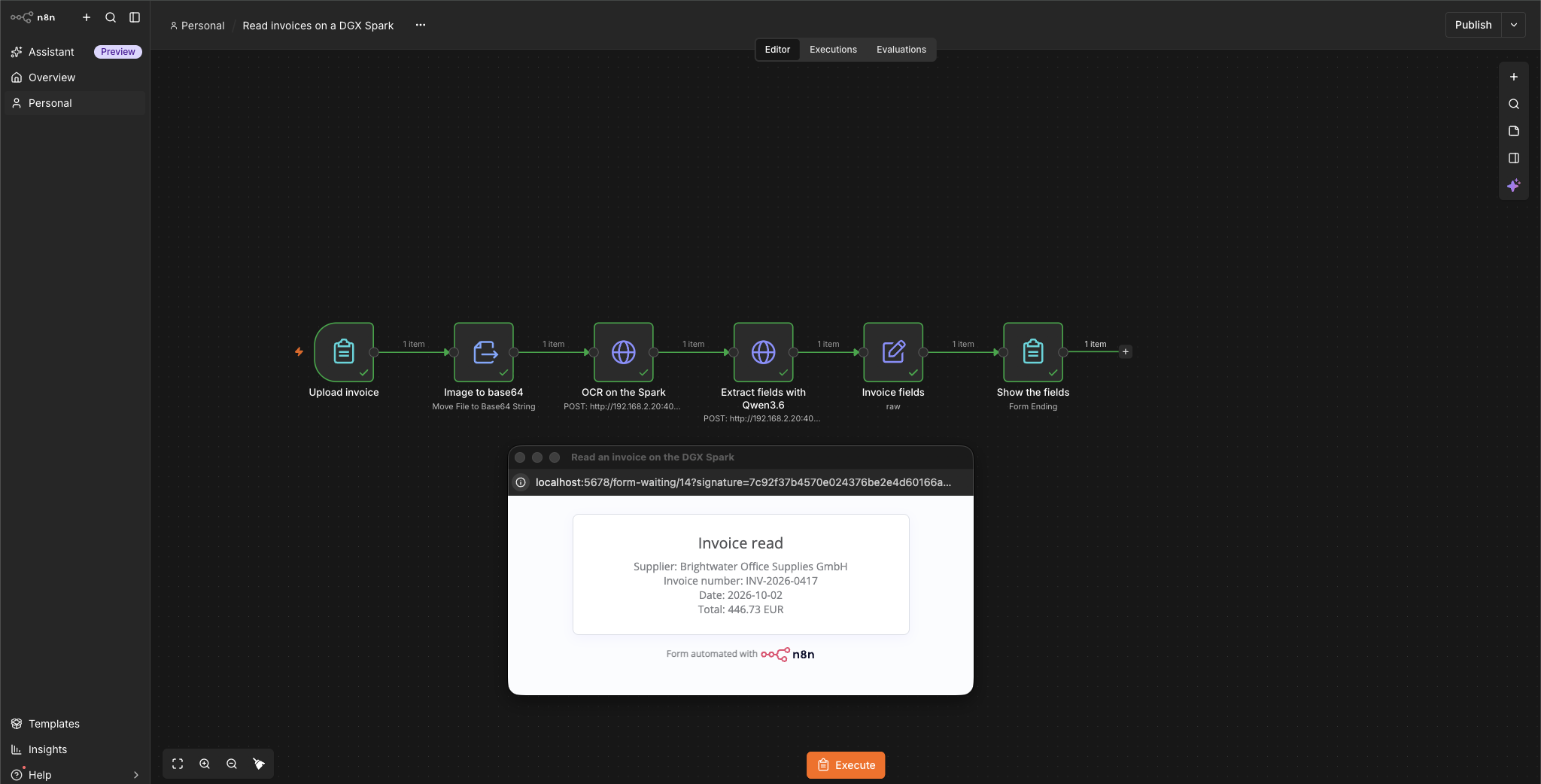
It has six nodes:
- Upload invoice (n8n Form Trigger) serves a form with one file field.
- Image to base64 (Extract from File) turns the upload into a base64 string.
- OCR on the DGX Spark (HTTP Request) sends the image to the
ocrroute and gets the page back as text. - Extract fields with Qwen3.6 (HTTP Request) asks
qwen3.6for supplier, invoice number, date, total, and currency as JSON. - Invoice fields (Edit Fields) turns the reply into one item with those five fields.
- Show the fields (Form Ending) shows them on the form's result page.
To file invoices automatically, swap the form for an Email Trigger (IMAP) node, and the result page for a Postgres or Google Sheets node.
Both HTTP Request nodes use the OpenAI credential from the previous section, so they send the same key. They use HTTP Request rather than the OpenAI node because each call needs a field the OpenAI node doesn't set: an image in the OCR call, and a thinking switch in the extraction call. This is the body of the extraction request:
{
  model: 'qwen3.6',
  max_tokens: 512,
  temperature: 0,
  chat_template_kwargs: { enable_thinking: false },
  messages: [{ role: 'user', content: 'Extract supplier name, invoice number, invoice date, total amount and currency from this OCR text. Reply with one JSON object and nothing else. Use null for anything missing.\n\n' + $json.choices[0].message.content }]
}
chat_template_kwargs turns off the model's thinking for this call, and that's where the speed comes from. I tested it on a clean, single-page sample invoice:
| Step | With thinking | Thinking off |
|---|---|---|
| OCR, one page | 1.8s | 1.8s |
| Extraction | 12.1s, 1,616 tokens | 0.59s, 76 tokens |
With thinking on, the model wrote 1,538 reasoning tokens before a 78-token answer. With thinking off, it got all five fields right in under a second. For fixed-format extraction, turn thinking off.
OCR read every line item and total correctly, but it dropped one zero from a VAT ID. Validate IDs before you file them. The form accepts PNG and JPEG files. Convert PDF invoices to images first, because GLM-OCR takes images.
A scanned or photographed invoice is harder than this clean page, so test OCR on your own documents before you rely on it.
Other workflows the same stack serves
- Call summaries: Whisper transcribes a recording,
qwen3.6summarizes it, and Kokoro reads the summary back for a voicemail or an internal update. - Answers from your own documents:
embedfills a vector store,rerankorders the matches, and an AI Agent onqwen3.6answers with them.
What one DGX Spark measured
All numbers come from one benchmark run on October 13, 2026, on vLLM 0.30.0 with pinned model commits. Your numbers will differ with other images, models, or prompts. Every chat prompt started with a random tag, so the prefix cache couldn't flatter the results.
Chat speed
| Users | Time to first token (median) | Tokens per second per user | Tokens per second total |
|---|---|---|---|
| 1 | 0.11s | 120 | 87 |
| 4 | 0.21s | 68 | 242 |
| 8 | 0.29s | 47 | 359 |
Per-user speed is the median generation speed of each request, measured after its first token. Total is all tokens generated divided by the test's elapsed time, so it also counts time to first token and any slower requests. In the single-user run, one of the five requests ran at 43 tokens per second while the other four ran at 117 to 129, which pulls the total down to 87.
With an 8,537-token prompt, the first token took 1.14 seconds.
Per-user speed falls as users are added, but total throughput keeps climbing. That's batching at work: vLLM serves several users in each pass over the weights.
Every other job
| Job | Task | Seconds (median of 3) |
|---|---|---|
| Text to speech | One paragraph, 30 seconds of audio | 0.87 |
| Speech to text | Transcribe that clip | 0.58 |
| Image generation | One 1024x1024 image, 8 steps | 12.2 |
| OCR | One page | 1.80 |
| Extraction | OCR text to invoice JSON, thinking off | 0.59 |
| Embeddings | 32 passages | 0.18 |
| Reranking | 32 candidates | 0.03 |
Speech is far faster than real time in both directions: 30 seconds of audio in under a second each way. Whisper's transcript was accurate, but it added a "Thank you." at the end that isn't in the audio. Whisper is known to invent text on silence, so trim trailing silence before you transcribe.
Set the step count for image generation yourself. Z-Image-Turbo is built to make an image in about 8 steps, but vLLM-Omni's default ran about 48 at 1.5 seconds each, which took 72 seconds per image. At 8 steps, the same 1024x1024 image took 12.2 seconds.
Chat while an image generates
Every model on the box shares one GPU. Fitting in memory doesn't mean running well together. I couldn't find a published DGX Spark benchmark for this, so I measured it. I generated 1024px images back to back, at the server's default step count, while running the chat test again.
| Users | Tokens per second per user, alone | With images generating | Change |
|---|---|---|---|
| 1 | 122 | 38 | -69% |
| 4 | 69 | 24 | -65% |
While images were generating, chat ran at about a third of its normal speed, and the images slowed down too, from 73 seconds to between 85 and 122.
One DGX Spark holds the whole stack, but it can't run image generation without slowing everyone's chat. For a small team, queue image jobs or run them outside working hours. Once image generation is part of the daily work, move media to a second DGX Spark and keep the first for text.
The license problem
Model quality wasn't the hard part. Licenses were.
Several of the best open text-to-speech and image models don't allow commercial use. The FLUX models that compete with Z-Image-Turbo are non-commercial or need a separately priced license. The strongest open image model at the time of writing, Qwen-Image-2.1, ships under a research license. Some repositories even have a non-commercial twin next to a permissive original, so caching the wrong repository ID changes your license.
The rules this stack follows:
- Allow only Apache 2.0, MIT, CC-BY-4.0, OpenMDW, and the NVIDIA Open Model License.
- Pin every model to a Hugging Face commit, so a license change upstream can't land silently.
- Credit CC-BY-4.0 models in your documentation.
This isn't legal advice. Have someone review every pinned license before you sell or deploy this for a client.
What to watch for
- New checkpoints can need a newer vLLM than the one you pinned, and the error won't say so. Check the version inside the image first.
faster-whisperhas no CUDA build for arm64, so tools built on it run on the CPU without telling you.- This stack uses vLLM rather than Ollama, which ships in the starter kit. Ollama suits one person on a laptop. For a team, vLLM batches requests from many users into each pass over the weights, which is where the multi-user throughput comes from.
Try it
- Import the invoice workflow template.
- Start smaller with the self-hosted AI starter kit if you don't have a DGX Spark yet.
If you run this on your own DGX Spark, share your numbers on the n8n community forum.