


This Node Spotlight is a guest post written by Fabrice Wurtz, Content Marketing Manager at IONOS.
By combining the IONOS AI Model Hub, Nextcloud, and n8n, you can deploy a fully sovereign, automated document intelligence system that keeps every byte inside European jurisdiction.
In the race to adopt AI, many organizations have hit a wall. That wall is sovereignty, aside from output-cost-ratio. For industries like healthcare, legal, finance, and the public sector, the 'standard' path of sending data to a US-based AI provider isn't just risky—it often violates the AI Act, GDPR, or internal compliance frameworks.
The core concept: privacy by design
The goal is simple: your data never leaves your safety zone.
- Your storage: Nextcloud (self-hosted or IONOS Nextcloud Workspace).
- Your logic: n8n (orchestrating the flow).
- Your intelligence: IONOS AI Model Hub (open-source models like Mistral, hosted in European data centers).
Watch the full walkthrough on the IONOS UK channel. This 6-minute tutorial that covers installing the IONOS Cloud nodes, creating an API token, and building an AI-driven email triage workflow that keeps inference in European data centers. New to n8n and IONOS? Start with the intro video.
Real-world impact: sovereign legal review
Imagine a law firm or HR department handling sensitive employment contracts. Summarizing a 50-page non-disclosure agreement (NDA) would normally require hours of a senior associate’s time.
The compliant, sovereign path:
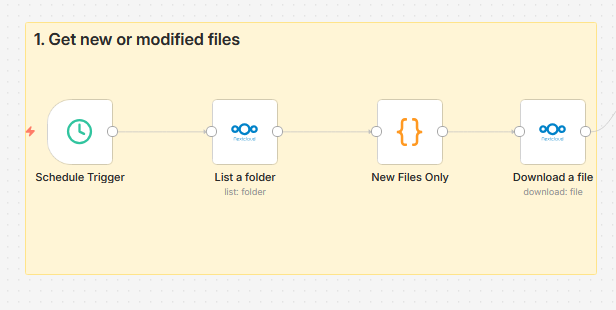
- A new contract is uploaded to a Nextcloud folder.
- n8n triggers, extracts the text, and routes it to inference.
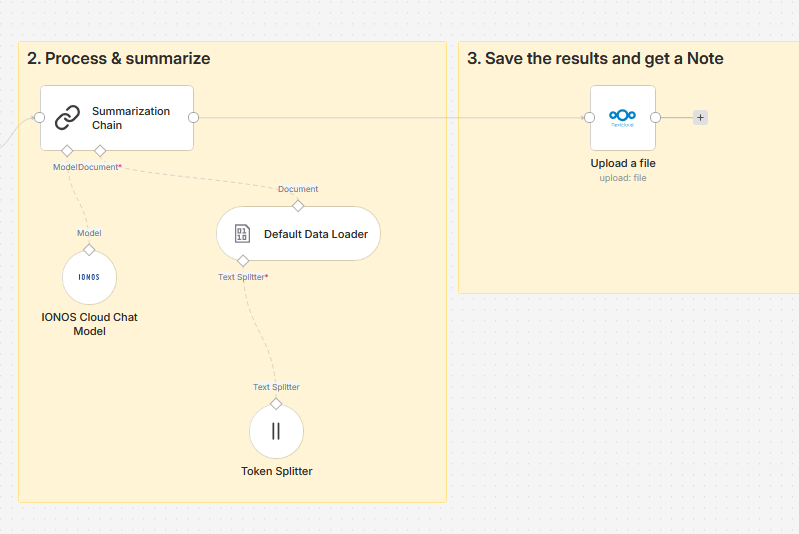
- The IONOS AI Model Hub node processes the text using open source models like Mistral Nemo—entirely within European jurisdiction.
- Within seconds, a summary highlighting 'high-risk clauses' is posted back to Nextcloud as a note.
The result: the firm gains the lightning speed of AI without ever 'exporting' client secrets to an unaccountable third-party provider.
Prerequisites
Before you import the workflow, make sure the following are in place:
- A self-hosted n8n instance (Docker, npm, or a VPS-based install such as the pre-configured IONOS VPS template). You’ll need owner or admin access, because community node installation is restricted to those roles.
- A Nextcloud instance with OAuth2 configured — either self-hosted or running on IONOS Nextcloud Workspace. You’ll need a Nextcloud OAuth2 app client ID and secret with read and write permissions.
- The Nextcloud Notes app installed and enabled, because the workflow writes summaries into the /Notes/ directory. Any Markdown file written there shows up as a note automatically.
- An IONOS Cloud API token. Sign up for the IONOS AI Model Hub and generate a token in the IONOS Cloud panel.
- The n8n-nodes-ionos-cloud community package installed in your n8n instance. The main IONOS CLOUD action node is a Verified node that can be installed from the Nodes Panel, but the IONOS CLOUD Chat Model sub-node used by this workflow ships as part of the community package. See the next section for install steps.
Step-by-Step Setup
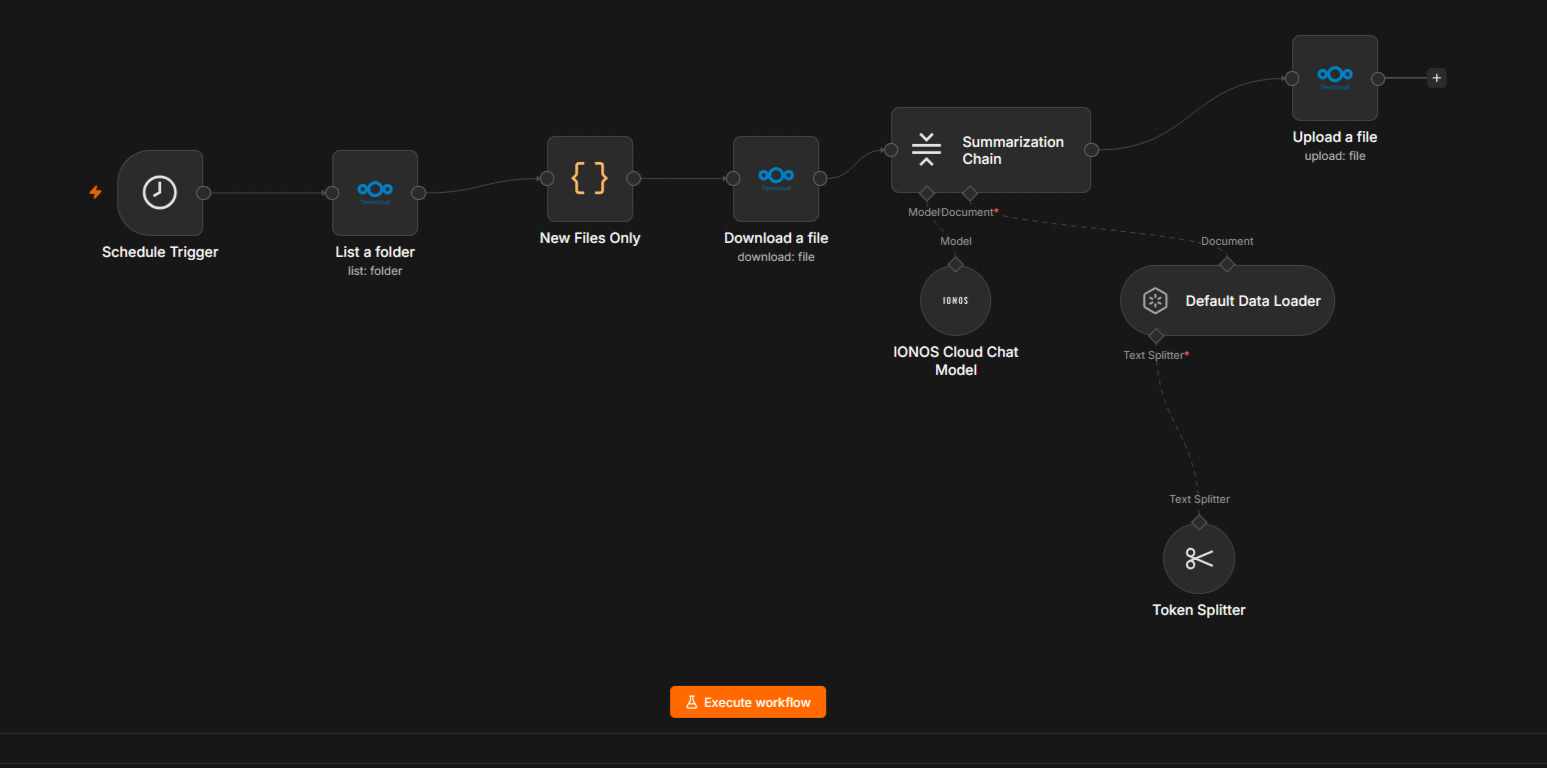
Import the the template to your n8n instance to follow along.
Step 1 — Import the Workflow
- Open your n8n instance.
- Go to Workflows → Import the the template.
- The workflow canvas will load with all nodes pre-configured.
Step 2 — Configure Nextcloud Credentials
- Click on any of the Nextcloud nodes (e.g. List a folder).
- Under Credential, click Create New or select an existing NextCloud OAuth2 credential.
- Enter your Nextcloud server URL, OAuth2 Client ID, and Client Secret.
- Authorize the connection and confirm read + write access.
All three Nextcloud nodes (List a folder, Download a file, Upload a file) share the same credential — once set, they all inherit it.
Step 3 — Configure IONOS Cloud Credentials
- Click the IONOS Cloud Chat Model node.
- Under Credential, click Create New.
- Paste your IONOS Cloud API token.
- You can change this to any model available on the IONOS AI Model Hub if you prefer.
Step 4 — Set the Folder to Monitor
- Open the List a folder node.
- Set the Path parameter to the Nextcloud folder you want the workflow to watch (e.g.
/Documents/Inbox/). - Only files inside this folder will be checked for changes.
Step 5 — Review the Filter Logic
The New Files Only code node filters the folder listing to keep only files modified within the last 24 hours. It also ignores directories. If you want a different time window, open the node and change the 24 to 48 to look back two days.
Step 6 — Adjust the Summarization Settings (Optional)
The summarization pipeline has two tunable parts:
- Token Splitter — the
chunkSizeis set to 3 000 tokens. For very large documents you can lower this to avoid context-window limits; for short documents you can raise it. - Summarization Chain — runs in
documentLoadermode, meaning it processes the binary file content directly. No changes are usually needed here.
Step 7 — Verify the Nextcloud Notes Integration
The Upload a file node writes each summary to: /Notes/Summary_<original-filename>. This path corresponds to the Nextcloud Notes app. As long as the Notes app is installed and enabled, any Markdown file written to /Notes/ automatically appears as a note in the app. You don't need to create this folder manually — the Notes app manages it. The summary file contains the original file name, the processing date, and the AI-generated summary, all formatted in Markdown so it renders nicely inside Notes.
How the Nodes Connect (Data Flow)
Schedule Trigger (every 24h)
↓
List a folder (Nextcloud)
↓
New Files Only (JavaScript filter: last 24h, files only)
↓
Download a file (Nextcloud)
↓
Summarization Chain (LangChain)
├── IONOS Cloud Chat Model (Mistral 22b)
└── Default Data Loader → Token Splitter (3,000 tokens)
↓
Upload a file (Nextcloud → /Notes/ → appears in Notes app)
Troubleshooting
- The IONOS Cloud node doesn’t appear after installation. Restart your n8n instance — community nodes are only registered at startup. If you’re on Docker, restart the container, not just the workflow.
- No files are processed. Check that the folder path in List a folder is correct and that files were modified within the last 24 hours.
- Authentication errors on Nextcloud. Re-authorize the OAuth2 credential. Make sure the Nextcloud OAuth2 app grants both read and write scopes.
- IONOS model errors. Verify your API token is valid and that the selected model name matches an available model on the IONOS AI Model Hub.
- Large files fail. Reduce the chunkSize in the Token Splitter node to give the model smaller pieces to work with.
- Summaries are empty or truncated. Ensure the file format is supported by the Default Data Loader (PDF, DOCX, and TXT work out of the box).
Why this setup is worth the extra steps
Compliance by Design
Most AI providers operate under legal frameworks like the US CLOUD Act, which can extend their effect beyond their home jurisdiction. IONOS is a European company with separate legal entities registered in several EU countries, data centers in the European Union, and operational separation from IONOS US business. The result is meaningful digital sovereignty: your data, trade secrets, and IP stay under European law. This is the key that unlocks AI for regulated sectors including global teams with EU customers, employees, or contractual residency requirements.
Open-source flexibility
The AI Model Hub provides access to state-of-the-art open-source models. You aren’t locked into a single provider’s proprietary logic — you choose the best model for the task.
Transparent pricing
IONOS AI Model Hub pricing is fully transparent. You pay only for the intelligence you need, rather than defaulting to the most expensive option, and you can set effective limits to keep token usage under control.
The outcome
- Security: GDPR-compliant by design.
- Efficiency: documents are summarized the second they land in the watched folder.
- Transparency: you know exactly where your data is processed.
Take the lead on sovereign AI
The future of AI isn’t just about who has the best model — it’s about who has the most secure one. Stop choosing between innovation and compliance. Start building your secure automation stack on infrastructure you control.
Resources
- Download the n8n workflow template
- Get started with IONOS AI Model Hub
- IONOS Cloud community node
- Watch the videos on using IONOS on n8n