
We're introducing a safer and more reliable way to manage your workflow development lifecycle with the arrival of Autosave, Versioned Publishing, and Concurrency Protection.
For a long time, Autosave has been the most requested feature from the community. But implementing it wasn't as simple as just removing the "Save" button. In previous versions of n8n, "Saving" an active workflow was synonymous with "Deploying" it. If we had simply enabled Autosave in that environment, every half-finished node configuration or temporary break in logic would have been pushed live to production instantly.
To give you Autosave, we first had to fundamentally change how n8n handles workflow states. We had to decouple the act of saving your work from the act of deploying it live.
This post explains how Autosave and Publishing work together to provide a safety net for mission-critical automations.
• Autosave launched in Beta with version 2.4.0
• Available for everyone - free self hosted, cloud, and Enterprise.
• No migration or actions required to start using.
• The save button is no more.
How It Works:
Let’s look at the key mechanics that power the new workflow lifecycle.
Autosave
This is the headline change. You no longer have a save button. The editor now checks for changes every two seconds and saves them automatically. No need to worry about browser crashes, accidental tab closures, or plain simple “I forgot to save this” situations.
Versioned Publishing
In the past, Saving an activated workflow meant instant changes to live. Now, you have explicit control over which version of your workflow is live. You can continue to make changes and iterate on your workflow for days while the Published version continues to run the old, stable logic.
Note: Publishing was added in v2.0.0
Version History (your new control center)
The History panel is now a mini "Command Center" for your workflow. Track changes, perform instant rollbacks, or publish any previous version.
Concurrency Protection
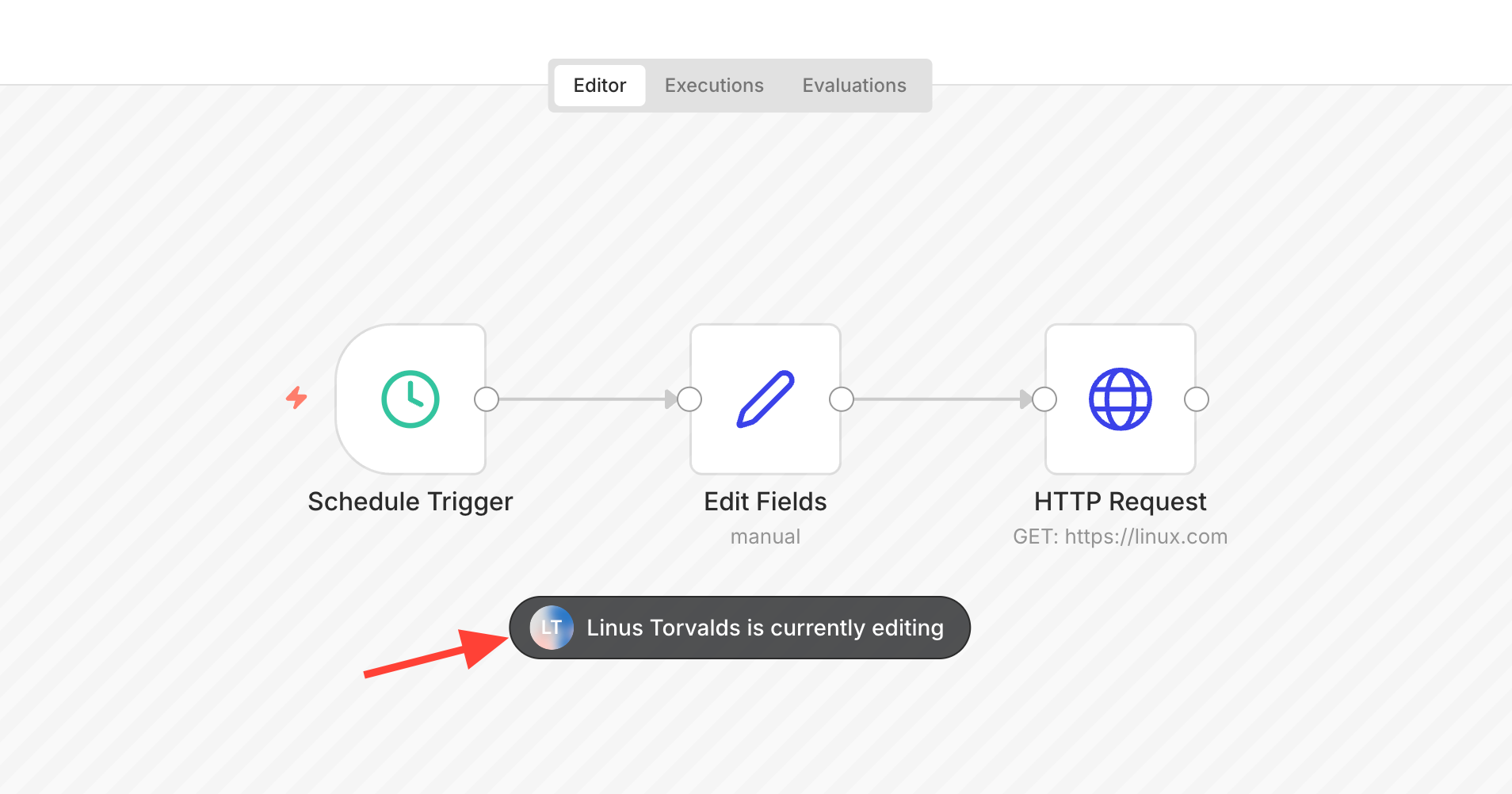
n8n now detects when a colleague is editing a workflow and temporarily locks the canvas in Read-Only mode for everyone else, ensuring you never accidentally overwrite each other’s active work.
The Workflow Lifecycle in Action
The best way to understand this new lifecycle is to see it in practice.
Let’s walk through the following scenario:
- Creating a new workflow
- Publishing it (making it live)
- Safe updates (updating an already published workflow)
- Publishing a new version
- Rolling back to a previous version
1. Creating a new workflow
From the moment you start editing, Autosave is active.
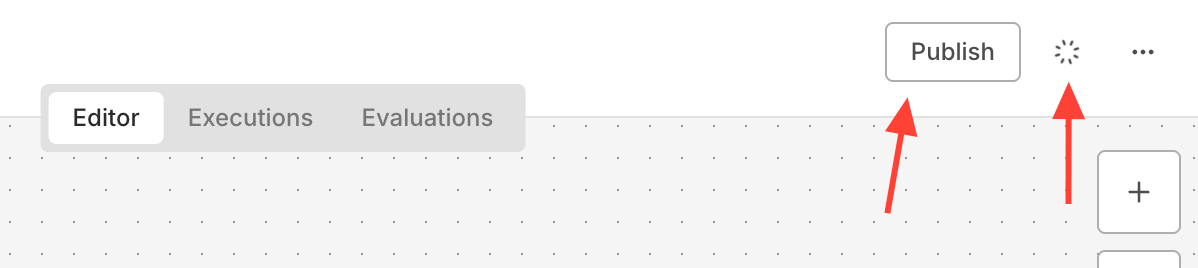
As you make changes to your workflow, the History Icon (the clock) in the top right of the screen occasionally spins to confirm it's constantly being saved in the background. Your work is safe.
At this stage, if we look at the Publish button, it has no status icon. This means the workflow is not currently published - nothing is live yet.
2. Publishing it - the first deploy
Once you've finished building the initial flow and tested it successfully, it’s time to make it live (previously called Activate).
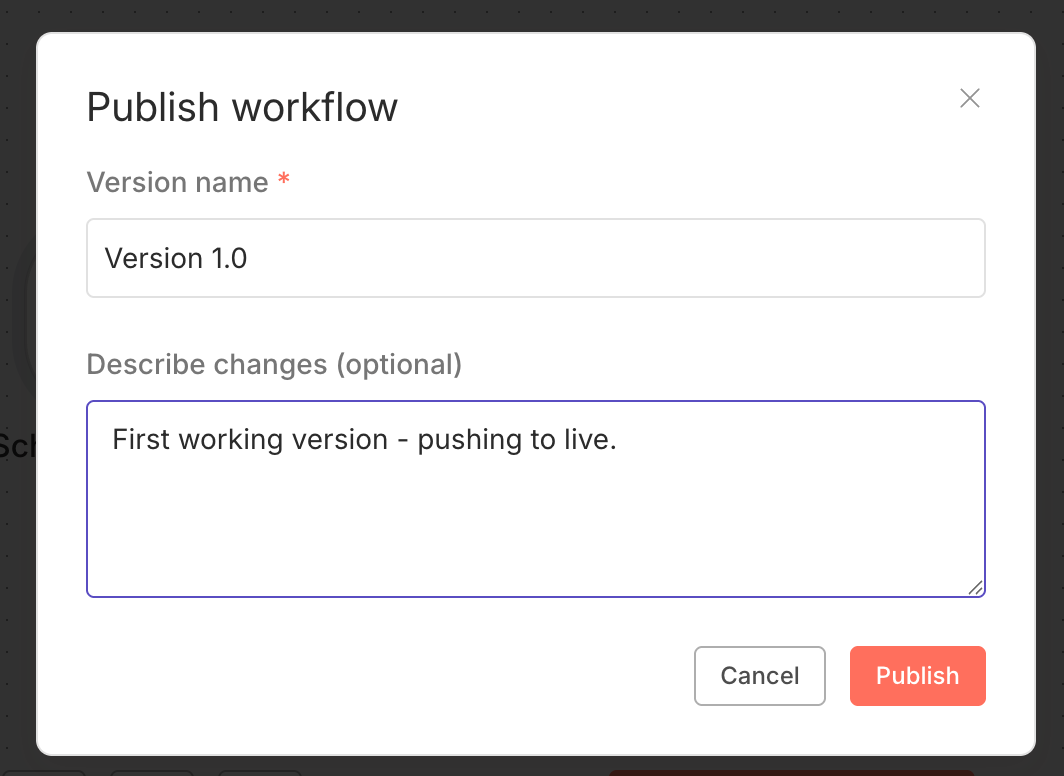
When you click the Publish button in the top right, you'll be asked for a version name and optional description. Now, any webhooks or other triggers in this workflow are active and listening.
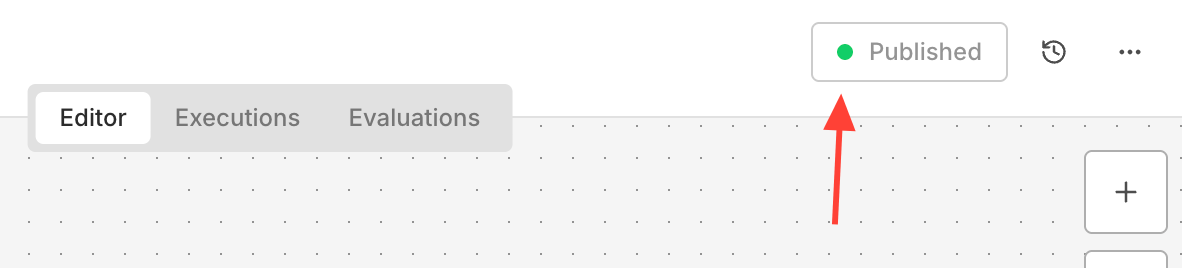
The button now says [Published] and we have a green status icon, meaning your current view is now the active, production version. Yay!
3. Safe updates
Now that it's published, we want to make improvements, but without impacting the live published version.
We can simply go ahead and make changes to the workflow. It will only impact the version in the editor, not the published version.
The icon next to the Publish button turns Yellow when you make your first change. This signals that the current version has diverged from Production.

4. Publishing a new version
Once you are ready to push the new changes to production, click the [Publish] button, you’ll be asked for a name (lets call it “Version 2”). The status icon turns Green again. The current version is now Published and the new logic is live.
5. Rolling back to a previous version
Five minutes later, you realize Version 2 introduced a nasty bug and need to fix production immediately.
Instead of frantically undoing changes, you can now roll back and publish (or re-publish) any version from the Version History panel:
- Find the previous version (version 1.0 - the one that was working previously).
- Click the Three Dots menu next to that version.
- Select Publish this version.
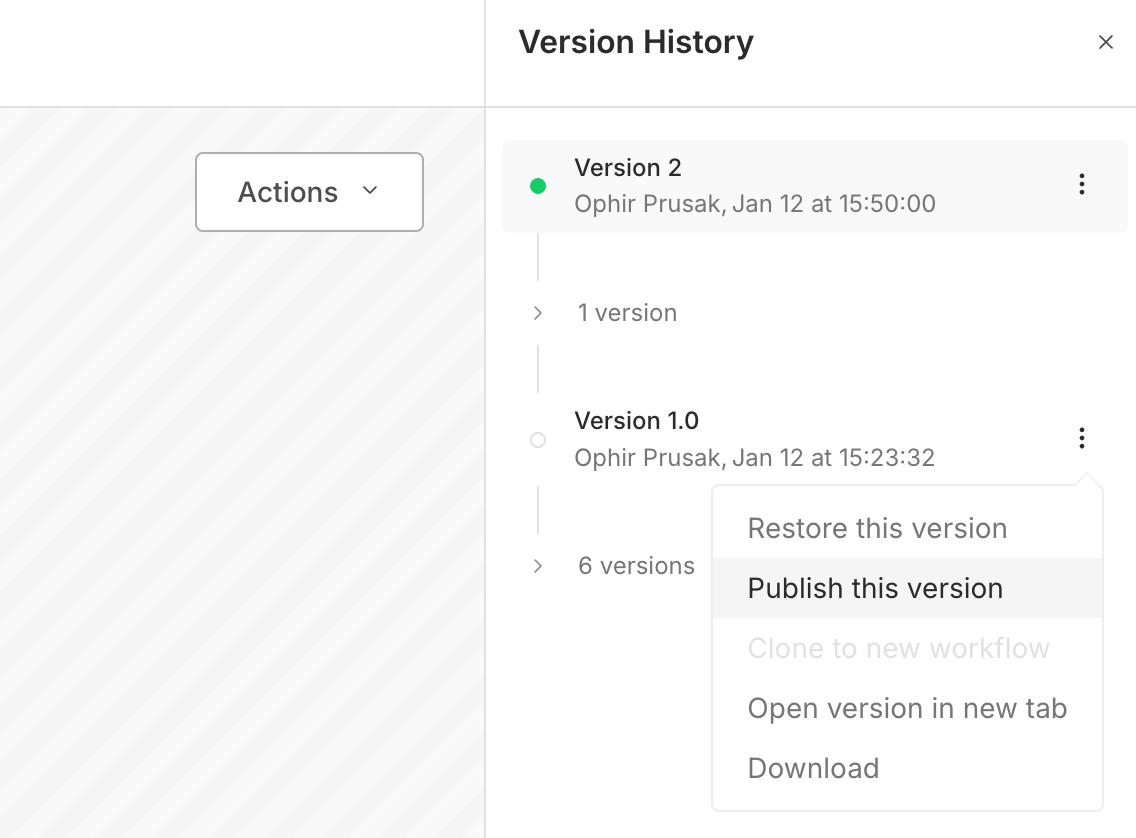
Production is instantly reverted to the safe version, buying us time to fix the bugs. Crisis averted!
Collaboration and Concurrency Protection
Finally, Autosave introduces a new challenge: in a collaborative environment, how do we ensure teammates don't accidentally overwrite each other's work?
To solve this, we are introducing Concurrency Protection.
1. Working with Teammates (Read-Only Mode)
When you open a workflow that a teammate is currently editing, n8n will detect the activity and automatically load the editor in Read-Only Mode (the diagonal lines) and you'll get a message letting you know exactly who is currently working on the workflow.
Real-Time Updates
In Read-Only mode, you aren't just looking at a static snapshot. As your teammate adds nodes or changes parameters, your screen will update in near real-time. This allows you to watch their progress live as they build.
Once your teammate leaves the workflow or goes inactive for a short period, the edit lock releases and the canvas changes from read-only to edit mode. Because your screen has been updating live, you can simply take over and start editing exactly where they left off.
2. Protecting You From Yourself (Multi-Tab Safety)
We also added safeguards for those times when you accidentally (or not) have the same workflow open in multiple tabs, or even different browsers.
Let’s say you make edits in Tab A, and then switch back to the outdated Tab B to try and make a change, n8n will still catch the conflict.
Instead of silently saving (and potentially losing the work you did in Tab A), you will see a popup alerting you that the workflow has been modified elsewhere. You are then given a choice:
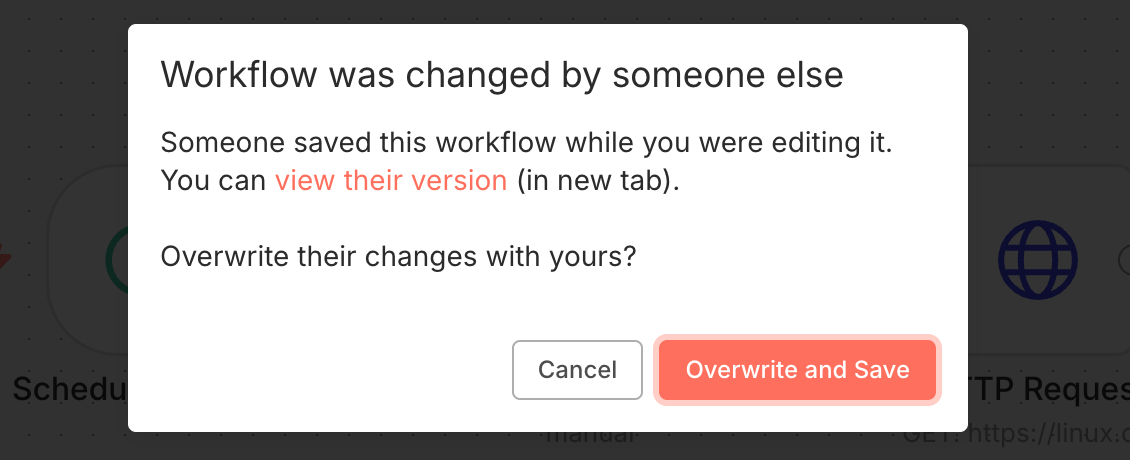
This ensures that even if you get your tabs crossed, you never accidentally lose code without making a conscious decision to do so.
Coming Very Soon - Naming Versions & Enhanced History
Autosave Beta (v2.4.0) delivers the core functionality for Autosave, Publishing and Concurrency Protection and we have a "fast-follow" update coming in the next couple of weeks that adds a few key capabilities:
- Custom Version Names: Soon, you will be able to assign a name to any version without publishing it. This is perfect for marking your progress or identifying a specific state while you iterate on complex logic.
- Visual History Improvements: We are refining the Version History panel to make it even easier to distinguish at a glance which versions have been published versus those that haven't.
- Renaming: You will also gain the ability to rename past versions to keep your history organized.
These updates are right around the corner.
We’re super excited to finally provide you with Autosave as part of the updates to provide a reliable and safe environment where you can build complex automations with confidence.
Autosave, improved Versioned Publishing, and Concurrency Protection are now available in Beta (version 2.4.0).
As with all Beta features, please avoid using this on mission-critical production instances until the Stable version is released.
Questions or comments?
Join the discussion in the community forum