
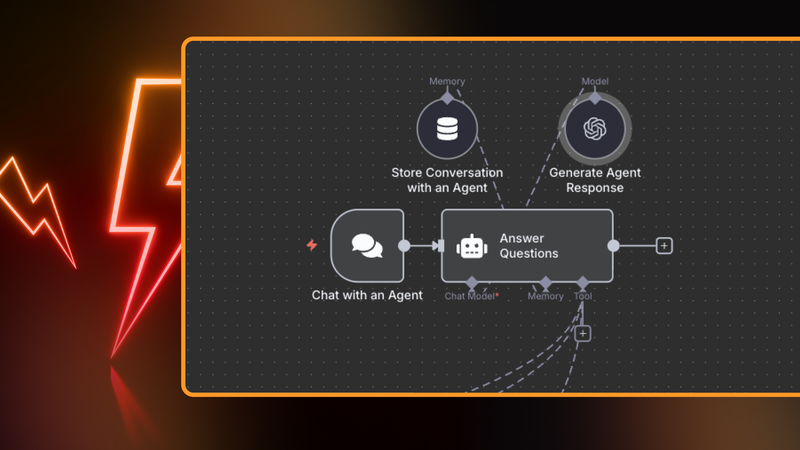
You’ve spent weeks building your AI agent. You’ve tuned prompts, connected APIs and handled edge cases. Everything works perfectly in your test environment.
Then you deploy to production. Your agent suddenly times out under real load, your API costs spike and error alerts flood your inbox. Users report inconsistent responses.
Sound familiar?
The gap between “works on my machine” and “handles production traffic reliably” is larger than most builders expect. Production-ready AI agents need more than functional workflows – they need solid infrastructure, proper error handling, monitoring, and maintenance procedures.
This guide covers the 15 best n8n practices for deploying AI agents that run reliably in production. We’ve organized them into 6 phases that roughly mirror the software development lifecycle: infrastructure, development, pre-deployment, deployment, maintenance, and retirement.
You’ll learn:
- How to choose and configure n8n infrastructure that scales
- Security and testing practices to implement before going live
- Deployment strategies that minimize risk
- Monitoring and optimization techniques for long-term stability
Trustworthy AI systems combine deterministic workflows, probabilistic models, & human oversight. Automation ensures control, AI handles complexity, & humans own risk, edge cases, and final responsibility. - Jan Oberhauser, Founder and CEO of n8n
Let’s get started! Or feel free to jump straight to the section that interests you most:
- Infrastructure setup
- Development
- Pre-deployment
- Deployment to production
- Ongoing maintenance
- Retirement
- Wrap Up
- What’s next?
This guide assumes you know what agent you want to build in n8n. We start at implementation – how to build an AI Agent correctly for production use, whether you’re deploying alone or with a team.
Infrastructure setup
Before building your first workflow, choose where your AI agents will run. This decision affects scalability, security, compliance capabilities, and operational burden. The first two practices establish the foundation everything else runs on.
1. Choose the optimal n8n environment
n8n Cloud handles infrastructure management for you. Sign up and start building within minutes. n8n manages servers, updates, scaling, and uptime. Best for teams that want to ship fast without DevOps overhead, and do not have special data sharing requirements.
Self-hosted tradeoffs: you control everything, but you're responsible for uptime, security patches, backups, and scaling. This means initial server setup, regular n8n updates, and ongoing stability monitoring.
Here's a quick comparison:
| Deployment Option |
Speed to Launch |
Data Control |
Compliance Features |
Operational Overhead |
|---|---|---|---|---|
| n8n Cloud | Immediate | Shared responsibility |
Standard compliance |
Minimal |
| Self-hosted | Requires setup | Full control |
Custom configurations |
Requires management |
Decision framework:
- Startups and small teams: Start with Cloud, migrate to self-hosted later if needed
- Growing teams (10-100 people): Cloud until specific compliance needs emerge
- Enterprises: often start with a self-hosted solution for compliance and custom security
- Regulated industries: usually require self-hosting for data governance
Whatever you choose shapes how you'll handle scalability in the next phase.
2. Architect for scalability with queue mode and workers
Your agent handles 10 requests a day perfectly. What happens at 1000 per day? Or 1,000 per minute?
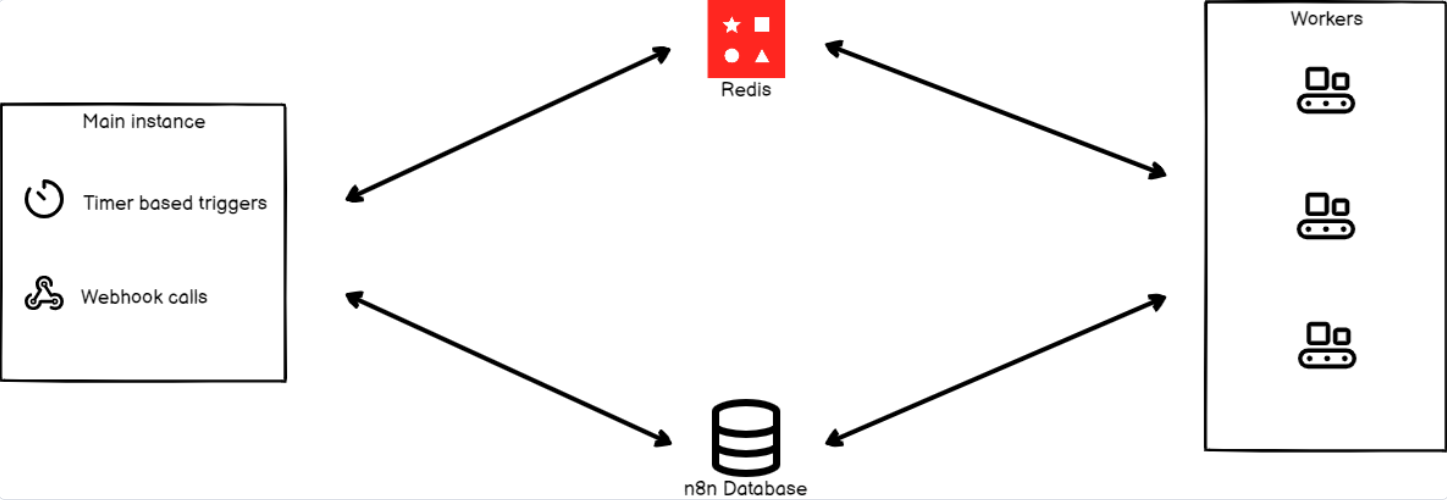
Queue mode separates workflow scheduling from execution. n8n uses Redis as a queue and worker processes to handle multiple jobs concurrently. When a workflow triggers, the job enters a queue. Worker processes pull jobs from that queue and execute them independently.
This means multiple workflows run simultaneously without blocking each other, even when some take longer than others.
How to set it up:
You need two components:
- Redis for job queuing (stores pending workflows) and the main n8n instance
- Worker processes for concurrent execution
Start with conservative worker sizing, then scale based on actual demand:
- Monitor queue depth (jobs waiting to execute)
- Monitor worker utilization (CPU and memory per worker)
- Monitor execution times (how long workflows take)
On n8n Cloud: queue mode is not enabled at the moment.
On self-hosted: you configure Redis main n8n and worker processes manually. See the n8n queue mode documentation for setup details.
Common issues to avoid and how to fix them when they happen:
- Queue growing faster than processing (add more workers)
- Workers maxing out CPU/memory (increase worker capacity or add more workers)
- Long-running workflows blocking the queue (set workflow timeouts)
Development
With infrastructure in place, you can start building your AI Agents. This section covers how to structure AI agent workflows in n8n on a high level – from choosing the right triggers to extending functionality with AI nodes, APIs, and custom logic.
3. Define workflow triggers for AI Agents
A workflow trigger is the starting event that activates your automation. n8n supports multiple trigger types, and you can add several triggers to a single workflow:
- Webhook triggers enable real-time responses to external events like form submissions, API calls, or third-party service notifications. Use them for scenarios requiring immediate action on single isolated events – processing customer inquiries or responding to system alerts.
- Scheduled triggers activate workflows at predetermined intervals. Perfect for batch data processing, report generation, or routine maintenance tasks that don't need real-time execution.
- Application event triggers react to events in third-party platforms: new emails in Gmail, updated records in Salesforce, file uploads to cloud storage. These triggers create bridges between your existing tools and AI agent workflows.
- The execute sub-workflow trigger activates when a parent workflow initiates a sub-workflow via the Execute Workflow node. You can define parameters so the sub-workflow always receives data in expected format. This trigger is more secure than webhooks because it doesn't expose the workflow to external systems.
Best practices to define a workflow trigger in n8n:
- Use descriptive trigger names and sticky notes that indicate the trigger's purpose;
- Document trigger logic for team collaboration;
- Test trigger configurations before deployment to ensure they activate under correct conditions (for example, when instant messenger apps send internal notifications along with user messages) ;
- Map expected execution volume to avoid API quota limits and sudden costs;
- Consider audit requirements for regulated environments.
4. Extend workflows with AI, API integrations and custom logic
n8n provides several ways to extend workflow functionality: pre-built nodes for common services, HTTP requests for custom API calls, and Code node for complex logic. Finally, there’s a huge library of community nodes. Some of the community nodes get approval and can be found in the cloud version.
Pre-built nodes connect to popular business applications with built-in authentication. The n8n integrations library includes nodes for Slack, Salesforce, HubSpot, Google Workspace, and hundreds more. You can even connect to MCP servers via the MCP client node. These nodes handle API-specific requirements automatically, reducing development time and potential errors.
When to use pre-built nodes:
- The service has an official n8n node
- You need standard operations (read, write, update)
- Authentication is complex (i.e. OAuth)
- The node is actively maintained
The HTTP Request node connects to any service through REST APIs. Use it for internal APIs, specialized services, or when you need specific endpoints not covered by pre-built nodes.
AI nodes execute tasks requiring reasoning or contextual understanding: content generation, sentiment analysis, data classification, and decision-making. These nodes connect to external language models (OpenAI, Anthropic Claude, local LLMs) and can return structured results for downstream workflow steps.
Choose AI models based on your use case:
- GPT-5.2: complex reasoning, long context, highest quality
- Gemini Flash: faster, cheaper, good for classification and simple tasks
- Local LLMs (via Ollama): no external API costs, full data control but installation required
The Code node implements custom logic using JavaScript or Python. Use it for complex calculations, data transformations, or when working with external libraries. The Code node bridges the gap between low-code visual automation and traditional programming.
Best practices for using the Code node:
- Keep logic simple (complex operations belong to dedicated nodes)
- Handle errors explicitly (don't let scripts throw unhandled exceptions)
- Validate input data (don't assume data structure)
- Set execution timeouts to prevent hanging workflows
- Add logging for troubleshooting
Best practices for AI-specific workflows:
- Log all AI prompts and outputs for accuracy tracking
- Implement guardrails to prevent incorrect actions
- Validate AI outputs before using them in downstream processes
- Version control your prompts separately from workflows
- Test prompt variations to optimize quality and cost
5. Orchestrate multi-agent systems to coordinate complex, multi-step workflows
Complex business processes often require multiple specialized agents working together, with human oversight at critical decision points.
Multi-agent patterns let you coordinate multiple AI agents for different tasks:
- Sequential execution: Agent A completes its task, passes results to Agent B, which passes them to Agent C. Apply this pattern when each step depends on the previous one (data validation → analysis → report generation).
- Parallel execution: Multiple agents run simultaneously and results are combined. Faster than sequential but requires careful result aggregation. Example: One agent analyzes sentiment while another extracts entities from the same text.
- Hierarchical coordination: A gatekeeper agent routes requests to specialized agents based on intent or complexity. The gatekeeper handles simple requests directly and delegates complex ones to specialists.
Implementing multi-agent coordination in n8n:
Use the Execute Workflow node to call sub-workflows. The parent workflow can pass parameters to ensure sub-workflows receive data in expected format, wait for results, and handle errors if a sub-workflow fails.
Best practices for building multi-agent systems in n8n:
- Define clear responsibilities for each agent
- Implement error handling when sub-workflows fail
- Monitor coordination points for bottlenecks
6. Implement human-in-the-loop workflows
Human-in-the-loop workflows pause automation for manual review or approval at critical steps. Use these when decisions require human judgment, oversight, or compliance approval.
Common patterns
- Approval workflows: workflow pauses until a human approves an action (financial transactions above threshold, content publishing, account changes)
- Review and validate: agent completes a task, human reviews results before proceeding
- Escalation: agent attempts resolution, escalates to human if confidence is low or action fails
Implementing human-in-the-loop in n8n:
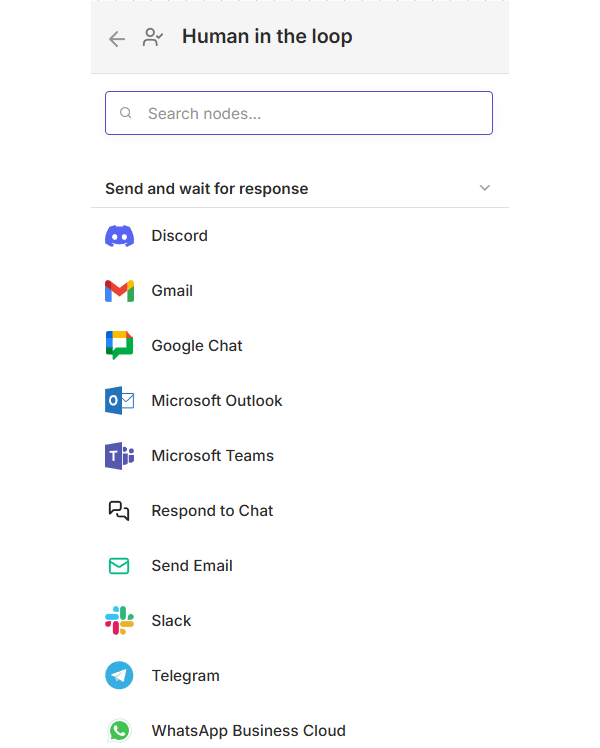
Several n8n nodes include "send and wait for response" operation, which simplifies workflow design:
- Send notification via Slack or email with context and action options
- Workflow pauses automatically until human responds
- Resume workflow based on human decision right from the same node: in many cases you don’t need to create a separate workflow to process the response
Best practices for using human-in-the-loop feature in n8n:
- Define clear escalation rules (when should humans intervene?)
- Set timeouts for human responses (what happens if there is no response?)
- Log all human decisions for audit trails
- Monitor escalation rates (high rates indicate the agent needs improvement)
- Design fallbacks if human doesn't respond in time
Pre-deployment
Your agent works in development. Now, before you deploy to production, implement several practices to ensure reliability, security, and maintainability. We grouped them into a single section to separate from other activities that actually define agent functionality. The classical software lifecycle concept places each activity under its own section, but in this article we only provide a high-level overview.
7. Design for security, secrets management, and compliance
Production AI agents handle sensitive data and connect to critical systems. Security isn't an afterthought – it's built into workflow design from the start.
Secrets management
Never hardcode credentials, API keys, or tokens in workflows. Use these n8n's features instead:
- Credential nodes: built-in n8n credentials system. This feature is available on all n8n tiers and you can re-use credentials from the built-in nodes inside the HTTP Request node.
- n8n custom variables: read-only variables that you can use to store and reuse values in n8n workflows (available in Pro and Enterprise tiers). If you are on the Community version of n8n in Docker, store sensitive keys in Docker secrets instead of simple environment variables.
- External vaults: HashiCorp Vault, AWS Secrets Manager for enterprise requirements
Each agent should only access the secrets it needs (the principle of least privilege). This limits exposure if a workflow is compromised.
Protect sensitive data in logs
AI agents may process customer data, financial information, and personal details. Configure logging to exclude sensitive fields:
- Use the workflow settings screen to control which executions get logged
- Configure environment variables for executions to set up the total number of saved executions and their duration.
Common AI agent security risks
Prompt injection: users can manipulate input to make the LLM ignore instructions or leak information. Mitigate this risk with input validation, strict system prompts, and output filtering. A dedicated Guardrails node can help with some of these tasks.
Credential leakage: AI agent includes API keys or secrets in responses. Mitigate by filtering outputs and never including secrets in the prompt context.
Unauthorized access: workflows trigger without proper authentication. Mitigate with webhook signature validation, API authentication, and IP whitelisting.
Compliance considerations:
- Audit logging: enable n8n log streaming to track the events on your instance (enterprise feature);
- Security audit: run a security audit on your n8n instance, to detect common security issues;
- Data retention: define how long to keep execution logs and results;
- Access control: use role-based access to restrict workflow editing to authorized team members;
- Encryption: ensure critical data is encrypted in transit (TLS) and at rest.
For regulated industries, document your security controls and maintain evidence for audits.
8. Enable version control and change management
Workflows evolve over time. Version control tracks changes, enables rollbacks, and maintains a history of why changes were made. The Enterprise version of n8n has an extended version control functionality. Users on the Community version can create their own backup workflows or check the templates gallery.
Version control strategies
- Automatically export workflows as JSON and store them in Git. This provides:
- Complete change history with commit messages
- The ability to review changes before deployment
- Easy rollback to previous versions
- Collaboration through pull requests
- When saving manually, use meaningful commit messages that explain what changed and why:
- ❌ "Updated workflow"
- ✅ "Added retry logic to handle API rate limits in a customer service agent"
Rollback procedures
Document how to revert to the previous version quickly. For critical workflows, practice the rollback procedure before you need it. Rollback should take less than 5 minutes.
Tag releases in Git so you can easily identify stable versions to roll back to.
9. Implement error handling and fallbacks
Errors will happen in production. APIs fail, rate limits hit, networks timeout. Your workflows need to handle failures elegantly without crashing or losing data.
Error handling in n8n
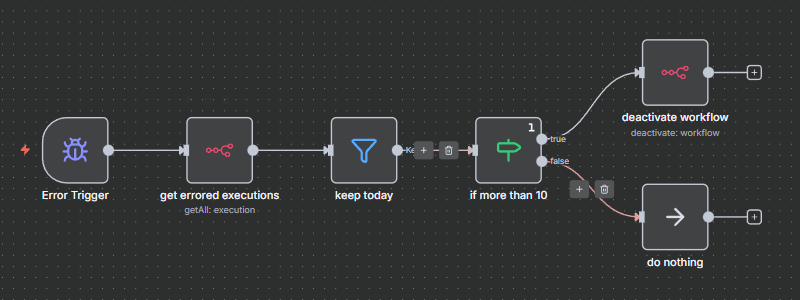
- Use the built-in error workflow feature to catch and handle errors at the workflow level. When a node fails, the error workflow triggers with context about what went wrong.
- Configure error handling per node (Settings tab):
- Continue on error: workflow continues even if the node fails
- Retry on error: automatically retry failed operations
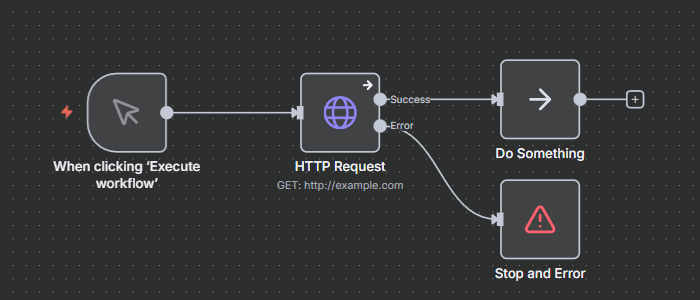
- Error output: route errors to a specific handling logic
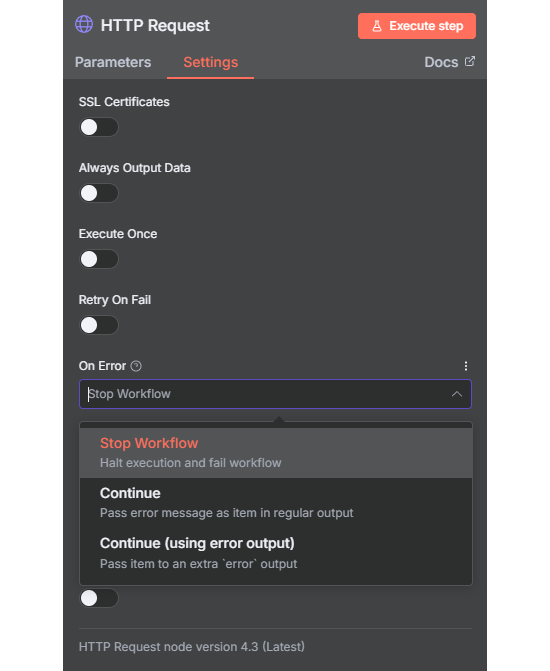
- You can also initiate the error workflow with a custom message. To do this, add a Stop and Error node to your main workflow. This way you can catch exceptions even if they are not usual errors.
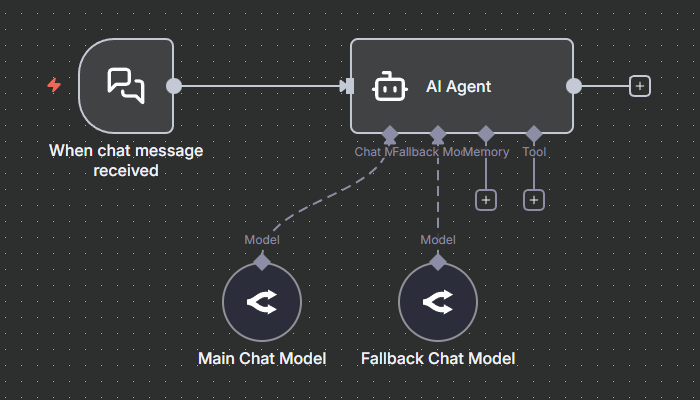
- Finally, n8n’s Agent node allows you to enable the fallback model, which will be used in case of errors caused in the main model.
Retry strategies
Implement exponential backoff for transient failures:
- First retry: 1 second delay
- Second retry: 2 seconds delay
- Third retry: 4 seconds delay
- Maximum retries: 3-5 attempts
Some API services tell exactly when you can continue sending requests. In such cases you can place a Wait node and provide a dynamic expression with the duration to wait (if it’s not very long).
Only retry transient errors: network timeouts, rate limits, temporary service unavailability. Don't retry authentication failures, invalid requests, or permanent errors.
Fallback mechanisms
Define what happens when retries are exhausted.
API call fails after retries:
- Use cached response if available
- Call backup API endpoint
- Return default/safe response
- Escalate to human for resolution
LLM returns error:
- Try with a simplified prompt
- Use template response with a generic answer
- Log for analysis and improvement
Queue overloaded:
- Implement backpressure (reject new requests with a helpful message)
- Alert operations team
- Auto-scale workers if using self-hosted
Graceful degradation
Design workflows to provide partial functionality when dependencies fail. Example: If the recommendation engine is down, an AI agent can show popular items instead of personalized recommendations.
Always log errors with enough context to debug: which node failed, what inputs were provided, what the error message was, and a timestamp.
10. Perform testing and validation
Testing AI agents is different from testing traditional software. The same input can produce different outputs due to the non-deterministic nature of LLMs. Your testing strategy must account for this while ensuring reliability.
Manual testing
Execute workflows step-by-step in n8n's editor. Use the trace view to see exactly what data flows through each node. This catches logic errors, data transformation issues, and integration problems.
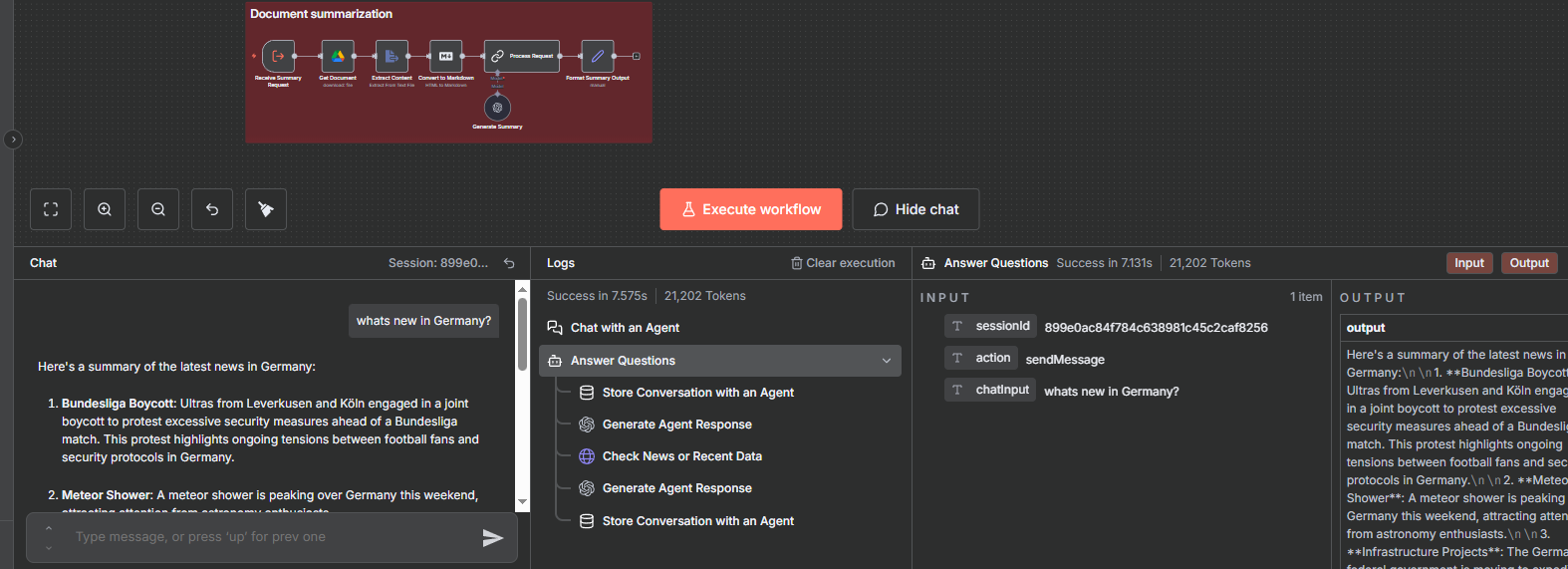
Test with realistic data that represents your production scenarios:
- Typical user inputs
- Edge cases (very long text, special characters, multiple languages)
- Error conditions (malformed data, missing fields)
- Boundary conditions (maximum limits, empty inputs)
Manually trigger error conditions to verify your error handling works:
- Disconnect from API to test timeout handling
- Send invalid data to test validation
- Exceed rate limits to test retry logic
- Simulate downstream service failures
Schema validation
Define expected data schemas for inputs and outputs. If you use sub-workflows, you can define the incoming data structures in the When Executed by Another Workflow trigger node. This prevents downstream processing errors when data structure changes unexpectedly.
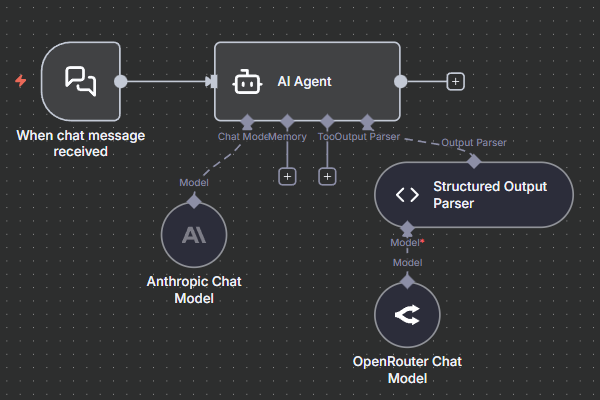
You can also activate the Specific Output Format settings in the AI agent node and define a JSON schema in the Structured Output Parser node. This node can automatically retry agent outputs without triggering workflow errors.
Most LLM providers have a built-in structured output mode; you can activate it by configuring the model’s response format. This is done in the chat model sub-nodes, not in the main AI agent node.
AI-specific testing
LLM outputs vary. Test the same prompt multiple times to understand output variability:
- Does the response format stay consistent?
- Are key facts always included?
- Does output quality degrade with edge case inputs?
There are also several common LLM pitfalls you may want to avoid:
- Hallucinations: AI invents information out of the context
- Bias: AI produces biased or inappropriate responses
- Inconsistency: same input produces very different outputs
You can define test scenarios and quality metrics with the n8n’s Evals feature.
Add an Evaluations Trigger node directly to your AI agent workflow. When you start the evaluation, the trigger pulls test cases from Data tables or Google Sheets and runs your actual agent workflow with each test input.
n8n evaluates the results based on built-in metrics (semantic similarity, helpfulness, correctness) or custom metrics that you define. Evaluations are performed on the live workflow, which means that any changes to prompts, models, or logic are automatically tested.
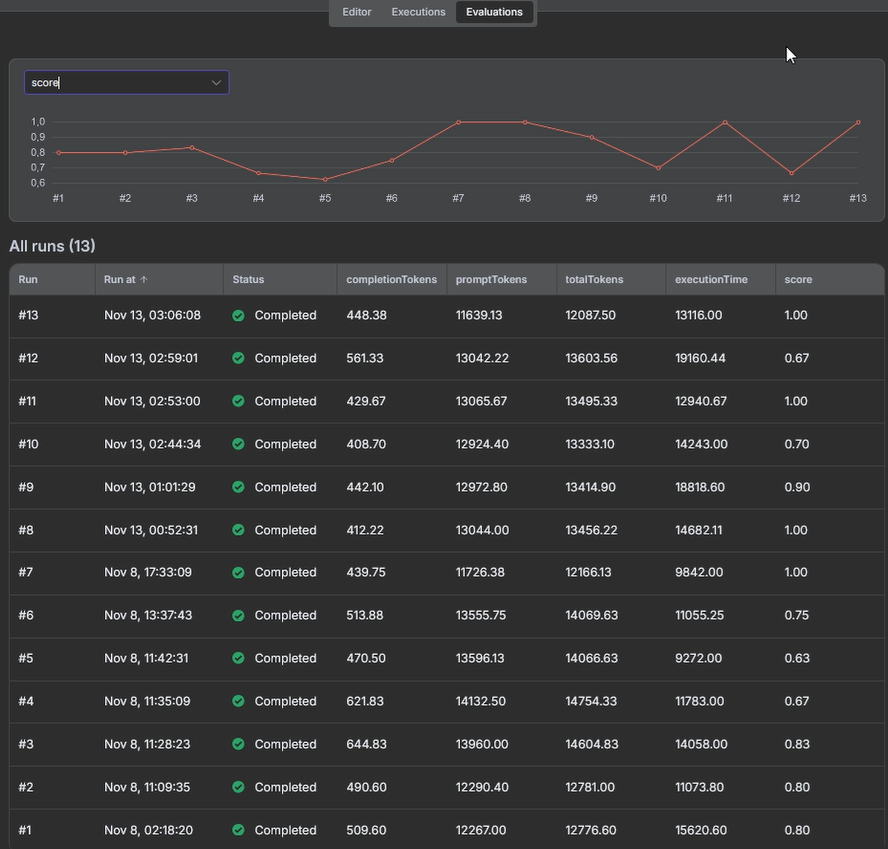
Evaluation first. Always. Think of it like test-driven development: you design the cases before you develop your agent and automation. Many decisions around that can be determined - no more gut feelings.
- Marcel Claus-Ahrens, Dr. Pure Eval/Automation Expert
Load testing
Test how your workflows perform under expected production load. If using queue mode, send bursts of requests and monitor:
- Response times (p50, p95, p99 percentiles)
- Queue depth
- Worker utilization
- Error rates
This reveals bottlenecks before production traffic hits them. You can read more about benchmarking the scalability of n8n workflows in the n8n’s blog article.
Staging environment
Test in an environment that mirrors production as closely as possible:
- Same n8n configuration
- Same queue mode and worker setup
- Real API credentials (for test accounts)
- Similar data volumes
The closer staging mirrors production, the more confident you can be in your deployment.
Document test results
Keep a record of what was tested, what passed, and what issues were found. This helps with future testing and provides evidence of due diligence for compliance requirements.
Deployment to production
You've built, secured, and tested your AI agent. Now it's time to deploy to production. These practices minimize risks during the transition from staging to live operation.
We’ve already mentioned different environments, let’s sum them up.
11. Implement environment-based workflow versions
Maintain separate versions of workflows for different environments. Each environment serves a specific purpose in your deployment pipeline.
Development environment:
- For building and iterating on workflows
- Uses mock or test API credentials
- Connects to staging external services
- Failures don't impact users
- Developers have full edit access
Staging environment:
- Mirrors production configuration as close as possible
- Uses test accounts in external systems
- Same queue mode and worker setup as in production
- The team performs final validation here
- Critical rule: test with realistic load patterns before promoting to production
Production environment:
- Uses production API credentials
- Serves real customer requests
- Limited edit access (requires change approval)
- Monitored intensively
- Automatic alerting on errors
Environment variable management
Use different credentials for each environment. n8n's environment variables make this straightforward:
DEV_API_KEYfor developmentSTAGING_API_KEYfor stagingPROD_API_KEYfor production
Workflows reference the appropriate variables based on where they're deployed.
12. Test in staging environment before going live
Staging is your final safety check before production. It catches issues that only appear under realistic conditions.
What to validate in staging
Run through complete business scenarios with real team members:
- Execute full customer journeys (not just individual workflows)
- Test with production-like data volumes
- Verify integrations with actual external services (test accounts)
- Confirm monitoring and alerts work correctly
- Practice incident response procedures
Go-live checklist
Before activating in production, confirm:
☐ All tests pass in staging
☐ Monitoring dashboards configured and accessible
☐ Alerts routing to correct team channels
☐ Error handling tested with real failure scenarios
☐ API rate limits verified for production volume
☐ Production credentials configured and tested
☐ The team knows a rollback procedure
☐ Support contact defined for post-deployment issues
☐ Documentation updated with any changes
Deployment strategies
Direct cutover: switch all traffic to the new version at once. Fastest but highest risk. Use for low-risk changes or internal workflows.
Gradual rollout (canary deployment): route a small percentage of traffic to the new version first, monitor for issues, then gradually increase.
Here’s how routing with a simple condition based on random distribution works. Add a switch node right after the workflow trigger and provide the following boolean expression: Math.random() < 0.05.
- 5% of requests go to the new version, 95% to the old version
- Monitor error rates and response times for a while right after the release
- If metrics look good, increase to 25%, then 50%, then 100%
- If issues appear, route all traffic back to the old version
Rollback procedures
Document the exact steps to revert to the previous version. Include:
- How to switch traffic back to the old version
- How to verify the rollback succeeded
- Whom to notify about the rollback
- Timeline: should complete ideally within a few minutes
Practice the rollback at least once in staging so the team knows the procedure and can react under pressure.
Post-deployment monitoring
Watch metrics closely for the first 2-4 hours after deployment:
- Error rates compared to baseline (i.e. to an average error rate of the past version)
- Response times
- Queue depth
- API costs
- User feedback or support tickets
Have the team available during this window to respond quickly if issues emerge.
Ongoing maintenance
Deployment isn't the finish line. Production-ready AI agents require ongoing monitoring, optimization, and support to work reliability and improve performance over time.
13. Implement continuous monitoring and incident response
Monitoring tells you when workflows fail and helps you spot problems before they impact users.
n8n Insights dashboard
n8n provides a built-in dashboard that tracks workflow performance. Available to all users on the Settings page, it shows:
- Production executions: total workflows executed (excludes test runs and sub-workflows)
- Failure rate: percentage of workflows that error
- Time saved: how much manual work your workflows automate (you configure this per workflow)
- Run time average: how long workflows take to complete
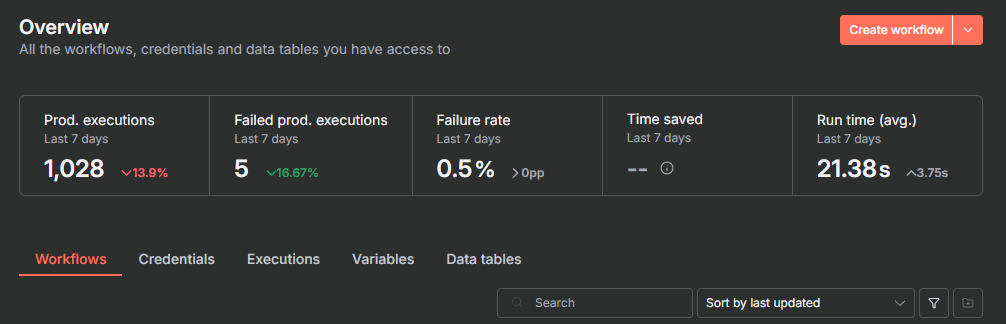
The dashboard compares current metrics to previous periods. On Enterprise plans, insights provide more fine-grained details and can indicate longer time ranges.
Configure time saved to show business value. For each workflow, set either:
- Fixed time saved: same value for every execution (example: "saves 5 minutes per run")
- Dynamic time saved: different values based on the execution path, using Time Saved nodes in your workflow
Key metrics to watch
- Failure rate increasing: check execution logs for error patterns
- Response times growing: workflows taking longer – check for slow API calls or queue buildup
Set up alerts
Alerting can happen in three ways:
1. Inside n8n workflows
Create workflows similar to error workflows that trigger on certain events or directly from the agent workflow. The alerting workflow receives the execution context and can:
- Send Slack or email notifications
- Log to external systems
- Create support tickets
- Trigger escalation procedures
Build scheduled health check workflows that run every 5-10 minutes to verify critical systems are responsive. (i.e., cloud CRM is available, external database is responding, etc.).
2. Health check endpoints
Self-hosted users can enable health check endpoints QUEUE_HEALTH_CHECK_ACTIVE=true:
/healthz: Returns 200 if the instance is reachable/healthz/readiness: Returns 200 if the database is connected and ready
Use these with uptime monitoring services (UptimeRobot, Pingdom) to get alerts when n8n becomes unreachable.
Combine n8n error workflows with regular health checks to keep your instance reliable. Poll the /healthz endpoint of your n8n instance to detect outages early and automatically trigger alerts or recovery actions.
Oskar Kramarz, AI + Automation Professional, Founder of Workfloows
3. External monitoring tools
For self-hosted deployments, enable the /metrics endpoint (setN8N_METRICS=true). This exposes Prometheus-compatible metrics you can scrape with Grafana, DataDog, or similar tools.
Monitor queue metrics when using queue mode:
- Jobs waiting (n8n_scaling_mode_queue_jobs_waiting)
- Jobs active (n8n_scaling_mode_queue_jobs_active)
- Jobs failed (n8n_scaling_mode_queue_jobs_failed)
Also monitor server resources through your hosting provider (or on-prem deployment): CPU usage, memory, disk space.
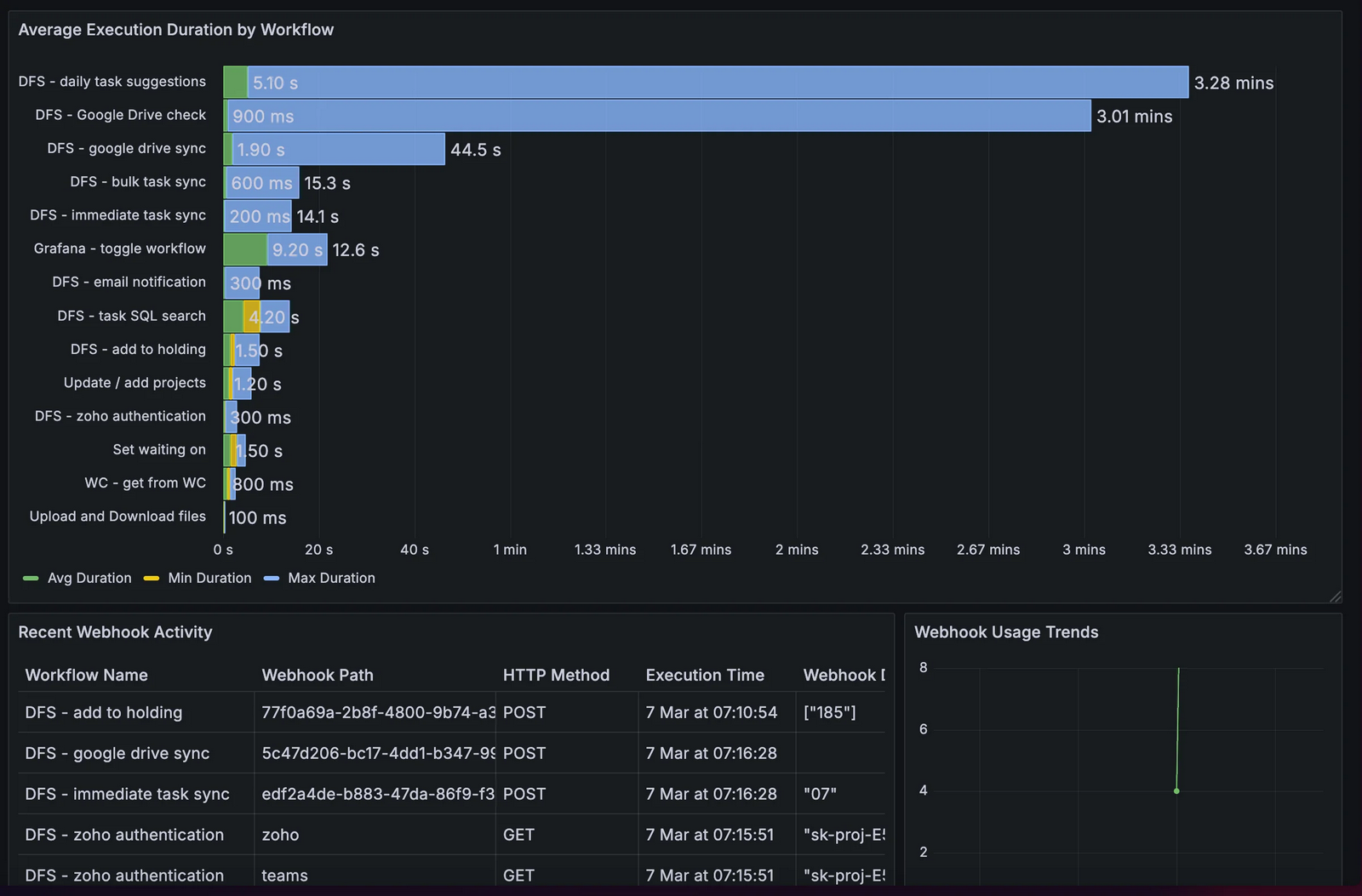
Advanced monitoring options
For Enterprise users: enable log streaming to send workflow events, audit logs, and AI node execution data to external logging tools (syslog, webhook, Sentry). Configure in Settings > Log Streaming.
For AI workflows: self-hosted users can connect to LangSmith to trace and debug the AI node execution. Requires setting LangSmith environment variables.
Responding to issues
When alerts fire:
- Check execution logs in n8n to identify which node failed
- Review error messages and input data
- Test fix in development or staging environment
- Deploy fix to production
- Monitor metrics to verify the issue is resolved
Keep your rollback procedure documented and ready. If a deployment causes issues, revert to the previous working version immediately.
14. Collect user feedback and provide support
User feedback reveals issues that metrics miss: poor response quality, confusing behavior, unmet needs. Build feedback collection and escalation directly into your workflows.
Collect direct user feedback
After an AI agent completes its task, send a rating request directly to the user. This bypasses the agent and captures unfiltered feedback.
Implementation approach:
- User receives a message with rating options (1-5 stars, thumbs up/down, satisfaction scale)
- User clicks rating, which triggers a webhook with the interaction ID and rating value
- Webhook workflow logs feedback to a database, spreadsheet, or analytics tool
Example: Send a Slack message with reaction buttons. When the user reacts, Slack triggers a webhook. Your logging workflow receives the interaction ID and rating, then stores it for analysis. You can set up an external database or rely on the built-in DataTables.
Track human intervention metrics
Monitor how often workflows require human escalation outside the usual approval process. High escalation rates indicate the agent needs improvement.
Create a dedicated sub-workflow that logs escalation events:
- Which workflow triggered the escalation
- Why it escalated (low AI confidence, error condition, user requested human)
- Timestamp, user ID, and relevant context
- Call this sub-workflow when a human-in-the-loop action triggers, which is not a part of your typical process
Track the escalation rate over time by creating a scheduled workflow that counts escalation logs and compares against total executions. This shows whether your agent is improving or degrading.
Implement escalation workflows
Define clear triggers for when workflows should route to humans:
- AI confidence score is below the threshold (LLM returns low certainty)
- Specific error conditions (API failures, invalid data)
- User explicitly requests human support
- High-risk actions requiring approval
When escalation triggers:
- Route to support team through Slack channel, ticketing system, or email
- Include full context: what the agent attempted, what failed, conversation history
- Provide user information so support can follow up
- Log the escalation (using the sub-workflow above)
Analyze and improve
Review workflows with consistently low ratings or high escalation rates. Check execution logs for error patterns and common failure scenarios. Use these insights to refine prompts, adjust confidence thresholds, or add missing capabilities. Test improvements in staging before deploying.
Retirement
15. Plan for graceful workflow retirement
Some of your AI Agents will run only for a certain time, and that’s okay.
Business processes change, better solutions emerge, or usage drops to zero. Retiring safely prevents broken dependencies and keeps your n8n instance organized.
Check dependencies before retiring
Workflows don't exist in isolation. Before retiring (be it a complete AI agent or a sub-workflow tool), identify the dependencies:
- Other workflows: check if any workflows call this one via the Execute Workflow node
- External systems: what services trigger this workflow via a webhook?
- Side effects: does anything depend on this workflow's outputs (database updates, file creation, notifications)?
Search your workflows for references to this workflow's name or ID. Check webhook endpoints in external systems. Document dependencies before proceeding.
Safe retirement process
Don't delete workflows immediately. Follow these steps:
- Move to the retirement folder: create a folder named "Deprecated" from the main n8n dashboard and move the workflow there. This signals your team that the workflow is being phased out.
- Deactivate the workflow: turn off all triggers so it stops executing automatically. The workflow remains accessible but won't run on its own.
- Monitor for unexpected calls: track the execution history for the next 1-2 weeks. If the workflow still executes, investigate why. You may have missed a dependency.
- Archive the workflow: after the grace period, archive the workflow. Archived workflows are hidden in the dashboard by default, but they can be restored if needed.
- Export to Git: before archiving, commit the workflow JSON to your Git repository. This preserves the workflow definition for future reference.
Clean up after retirement
Once archived:
- Remove the workflow from any monitoring dashboard
- Revoke credentials used exclusively by this workflow
- Remove webhook URLs from external systems
- Update documentation that references the workflow
Wrap Up
Today we’ve covered 15 best practices for building production-ready AI Agents in n8n from start to finish. We’ve grouped them into 6 blocks to help you make the best choice at each stage of the production lifecycle:
- Start with the infrastructure: your choice between Cloud and self-hosted, queue mode configuration and workers setup determine how much you can build, maintain and scale.
- Handle security and version control: this will protect your production environment and give you confidence to make changes.
- Pre-deployment validation is where you prepare for production: strengthening security, error handling, setting up version control and running comprehensive testing is what differentiates reliable production-grade AI agents from prototypes that break under load.
- Monitoring tells you what's actually happening: queue depth, execution time quintiles, error rates, and API costs show how your AI agent performs.
- Timely AI Agent retirement matters: abandoned webhooks and credentials can present security risks. Treat decommissioning with the same discipline as deployment.
We’ve illustrated the possibilities of the n8n's visual workflow builder for launching powerful production-ready AI Agents. With n8n, you can create and deploy AI agents in a low-code environment and use extensive custom code capabilities supporting JavaScript and Python as you need.
What’s next?
Ready to build production-ready AI Agents? Here's where to go next:
- Review 4 practical AI agentic workflow patterns to understand coordination approaches before building complex systems.
- Compare AI agent orchestration frameworks in detail - includes deployment options, pricing, and trade-offs.
- Explore production-ready AI workflows from the n8n community to see multi-agent patterns implemented.
- Check the AI integrations catalog to see what tools your agents can connect to;
- Check additional materials on the n8n AI Agents webpage: interactive visuals, features, client reviews and links to relevant tutorials.